Seedance 2.5 Workflow: From Inspiration to Original Video
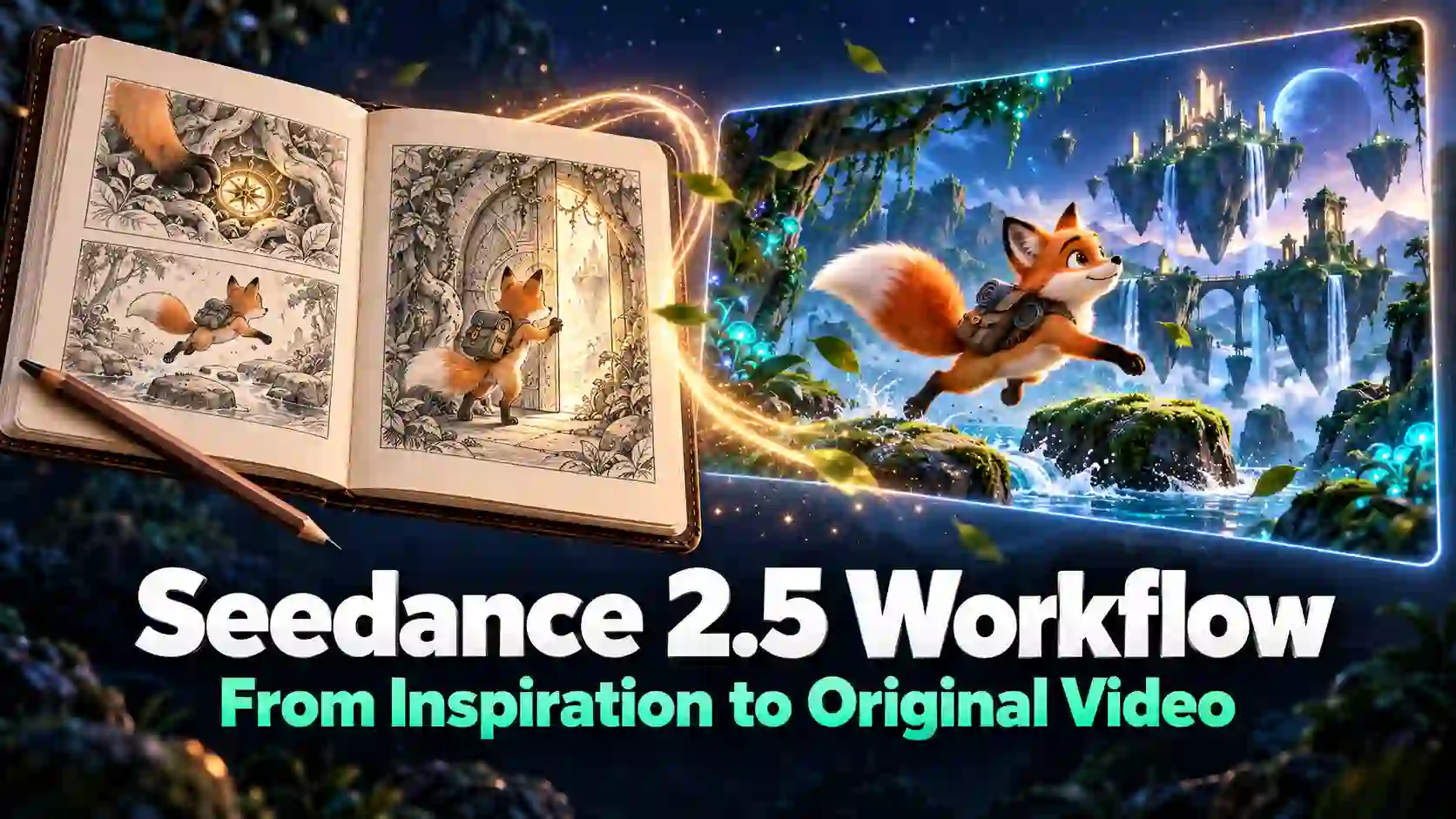
A saved video can inspire you without telling you what to make next. The useful step is identifying how its opening, actions, camera choices, and ending work together, then applying that structure to a different idea.
This Seedance 2.5 creation workflow takes you from reference analysis to an original brief, practical video prompts, and a first draft you can refine. Use it for character stories, lifestyle clips, product showcases, or imaginative short films.
TL;DR: Seedance 2.5 Creation Workflow
Study a reference for a specific creative purpose, such as a reveal, a performance, or a change in mood.
Record observable visuals, sound, and timing. Mark missing information instead of asking AI to guess it.
Replace the reference’s specific content with your own subject, setting, and story, then write instructions that describe visible actions.
Generate a draft, fix one main problem at a time, and save the decisions that make future projects easier.
Try Seedance 2.5 Generator NOW
Step 1: Choose a Reference with a Clear Creative Purpose
Know what you want to learn before you generate.
Start with a video that relates to your intended format or storytelling goal. A short scene with a satisfying reveal may be more useful than a hugely popular video whose appeal depends on a celebrity or a temporary trend.
Complete this sentence before analyzing anything: “I want to learn how this video…”
You might finish it with “makes an ordinary object feel intriguing” or “introduces a character without dialogue.”
Choose one or two priorities so your project has a clear direction.
When possible, compare two similar references. Notice where their openings, pacing, or endings differ. Treat those differences as creative observations, not proof of what caused one video to perform better.
Step 2: Break the Video into Useful Story Beats
Record what each moment does.
A short-form video breakdown should help you make decisions. “Beautiful lighting” is less useful than “a narrow beam reveals the object before the wider room becomes visible.”
Map the Visuals, Sound, and Timing
Use this video breakdown template while watching. Group the video into meaningful beats rather than recording every frame.
Field | What to record |
Time range | The observed start and end of the beat |
Visual action | What the subject does and what changes |
Camera and framing | Shot size, viewpoint, and main camera movement |
Dialogue, text, and sound | Relevant speech, captions, music, or sound effects |
Purpose | Introduce, intrigue, explain, develop, reveal, or resolve |
Not every video needs a call to action. A story can end with a reaction; a visual piece can finish on a memorable composition.
Record the ending’s actual function instead of forcing every reference into an advertising formula.
Use AI to Organize, Then Verify
Use a separate assistant that can inspect your source material to organize the analysis. This analysis prompt is not a Seedance generation prompt. If you only have a transcript, visual details and exact timing may remain unknown.
Copyable analysis prompt:
Analyze the attached video or supplied timestamped notes for creative structure. Return a table with: Time range, Visual action, Camera and framing, Dialogue/text/sound, and Purpose. Use only information you can observe. Mark unavailable details as Unknown and separate interpretation from observation. Preserve any quoted wording accurately. Then identify three reusable structural ideas without copying the video’s specific characters, dialogue, or setting. Do not infer audience performance from the content alone. Source material: [attach the video or paste timestamped notes].
Check important timestamps, quoted lines, names, and scene changes against the source. A neatly formatted table can still contain mistakes.
Step 3: Turn the Structure into Your Own Story
Use the pattern to develop a different idea.
Extract the function of each beat, then replace its content.
A sequence built around notice something, approach it, reveal the surprise can support many original stories.
For a fictional teaching example, imagine a woman discovering a rooftop garden:
Opening: She notices a moving patch of sunlight beneath a stairwell door.
Development: She approaches and opens the door.
Reveal: The camera follows her into a quiet garden above the city.
Ending: She pauses beside the plants as the city noise gives way to rustling leaves.
Write down your goal, subject, setting, three to five beats, and final image. Adjust the timing to fit your story; borrowing a structure does not require copying every second of the reference.
Step 4: Write Prompts Seedance 2.5 Can Act On
Translate the idea into visible actions.
Good Seedance 2.5 video prompts turn the brief into concrete instructions. Decide what the audience should see before adding style adjectives.
Describe the Shot, Not Just the Mood
Use this practical framework:
Subject + Setting + Action + Camera + Lighting and Style + Sound
For the garden reveal, a focused shot prompt could be:
A woman in an olive jacket stands at an open rooftop doorway. She steps into a small garden overlooking the city. The camera follows slowly from behind, revealing sunlit plants and the skyline. Warm afternoon light, natural movement, realistic cinematic detail. Soft footsteps and leaves rustling in a light breeze.
“Warm and cinematic” establishes a direction, but the doorway, walking action, following camera, and garden reveal make it executable.
Keep separate shots separate when they need different viewpoints or substantial changes in action.
You can plan them as a sequence without forcing every instruction into one continuous camera move.
Give Each Reference a Specific Role
The Seedance 2.5 generator offers reference-based creation options. Use the inputs and reference controls available in your selected mode.
For example
a character image can guide appearance
a location image can establish the garden
a video reference can communicate a camera move
If your selected workflow accepts audio references, explain their intended role too.
Write the relationship explicitly: use the character image for the woman’s appearance and the video reference for the slow following movement.
Avoid giving several references competing control over the same detail.
Use the following template with a writing assistant to prepare shot-by-shot AI video prompts:
Turn this original brief into a short shot plan for Seedance 2.5. For each shot, provide its purpose, suggested duration, and one concise generation prompt covering subject, setting, action, camera, lighting/style, and sound where relevant. State which supplied reference guides each detail. Preserve character and setting continuity. Use original wording and do not import characters or branding from the inspiration video. Treat durations as planning suggestions, not guaranteed generation timing. Brief: [paste brief]. Available references: [list files and their intended roles].
Step 5: Generate a Draft and Refine One Decision at a Time
Make each revision answer a clear question.
Open the Seedance 2.5 generator, select a suitable mode, and add your prompt and necessary references.
Choose the available aspect ratio, duration, and output settings for the intended placement, then review the displayed credit cost before generating.
Evaluate the draft against your brief:
Subject: Is the person or object recognizable and visually consistent?
Action: Does the intended event happen clearly?
Camera: Does the viewpoint reveal the right information?
Ending: Does the shot reach a useful stopping point?
In the rooftop example, the key question is whether the camera reveals the garden as the woman enters. An attractive skyline alone does not fulfill that purpose.
When a result misses the brief, make a focused adjustment:
Too many actions: Remove an event or divide the sequence into separate shots.
Conflicting references: Reduce the input set and clarify which asset controls each feature.
An unclear focal point: Simplify the scene and emphasize the main subject and action.
Keep the successful instructions while changing the part responsible for the problem. If you also change the subject, lighting, and camera, it becomes harder to understand what helped.
Step 6: Save a Reusable Creative Recipe
Keep what helps your next project.
A useful AI video workflow template can fit in a simple spreadsheet or note. Save the reference link and learning goal, extracted structure, final prompt, reference roles, and the result’s strengths or unresolved problems.
Give the entry a descriptive name such as “Follow a Character into a Reveal.” That will be easier to find later than “Great Video 12.”
Before starting a similar project, revisit the recipe and adapt it to the new subject instead of rebuilding the process from memory.
Turn Your Next Inspiration into a First Draft
Choose one reference and one technique worth learning.
Build a new scene around that idea, write a clear prompt, and use the first result to decide what to improve.
A practical Seedance 2.5 workflow grows through deliberate creative choices and useful revisions.
Start Creating with Seedance 2.5
Seedance 2.5 Creation FAQs
Can I Use This Workflow Without Uploading the Reference Video?
Yes. Watch the reference yourself and prepare timestamped notes or relevant screenshots.
An assistant can organize those materials, but it should not invent camera motion or audio that the supplied evidence does not reveal. The analysis reference does not have to become a generation input.
What If My Reference Video Has No Dialogue?
Analyze the actions, framing, transitions, music, and sound effects. Silent storytelling often depends on what is revealed and when.
Your new video can use the same kind of visual progression without adding unnecessary speech.
Should I Generate the Whole Story at Once or Create Separate Shots?
Use a continuous shot when the action depends on uninterrupted movement through one space. Separate shots can be easier to revise when viewpoints, locations, or actions change substantially.
Check the selected generator’s available settings before deciding how much to include in one generation.
Can the Same Breakdown Work for Different Video Formats?
Yes, but adapt the composition. A wide reveal may need a different camera position in a vertical video.
Reconsider subject placement, movement space, and any on-screen text rather than assuming a crop will preserve the original effect.
Related Articles
Seedance 2.5 vs Kling 4.0: Quality, Motion, and Control
Compare Seedance 2.5 vs Kling 4.0 on video quality, motion, storytelling, and creative control, using official features and practical creative examples.
Create Your Flying Car AI Videos with Seedance 2.5
Create Tesla Roadster-inspired flying car AI videos with Seedance 2.5. Learn the workflow, explore five ideas, and improve motion and consistency.