Create Your Flying Car AI Videos with Seedance 2.5
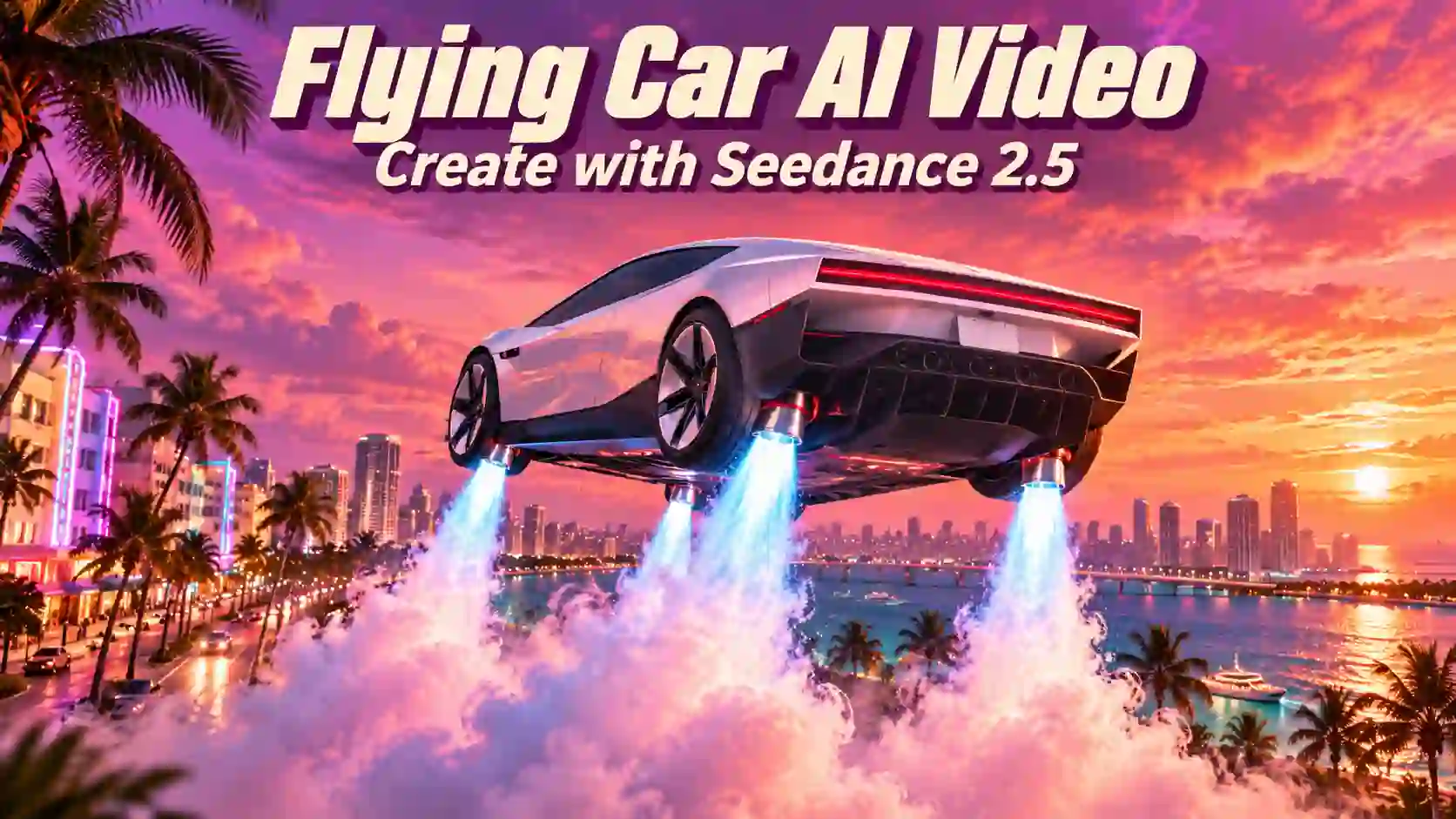
The Tesla flying car conversation makes a familiar daydream feel closer: what if your car could leave the road? Tesla’s October 15 Roadster demonstration included short airborne maneuvers. For AI creators, that is a starting point for imagining what happens next.
With Seedance 2.5, you can explore a Tesla Roadster chase, an unexpected flight-mode mishap, or a custom car cruising through a future city. This guide shows how to build those fictional AI scenes from references and clear prompts. They are creative concepts, not demonstrations of real Tesla capabilities.
TL;DR: Flying Car AI Video Creation
Start with a clear car image and one manageable action, such as lifting off and moving forward.
Assign references specific jobs: vehicle appearance, environment, or camera movement.
Use a longer clip when the story needs setup and resolution; test complicated actions in shorter shots first.
Check vehicle consistency, contact with surfaces, shadows, and the ending before sharing your AI-generated video.
Why Choose Seedance 2.5 for Flying Car AI Videos?
Give your flying car a complete story.
Up to 30 seconds: Build a sequence with a setup, takeoff, and finish—ideal for a chase or a comedy scene.
Reference-based control: Use car images to guide the design and video references to suggest motion or camera movement.
Flexible visual styles: Explore realistic road scenes, cinematic car reveals, or futuristic racing-game visuals.
Sound, editing, and extension: Add audio direction, revise existing footage, or continue a scene using the appropriate mode.
Start with a short takeoff test, then develop the result into a longer flying car video.
Start Seedance 2.5 Generator Online
Prepare Your Tesla Roadster or Custom Car References
Clear references give your flying car a stronger starting point.
Start with a Tesla Roadster, your own car, or an original design. Choose a sharp image with the entire vehicle visible, including its wheels and body outline.
Give each reference a specific job:
Reference | What to Include | What It Guides |
Car image | A clear view showing paint, wheels, and body details | Vehicle appearance |
Scene image | A tunnel, city street, test pad, or futuristic setting | Environment and lighting |
Video reference | A useful tracking shot or movement sequence | Camera direction or action |
Match the reference to your planned shot. If the camera moves behind the car, include a matching rear view. Keep the design consistent across images.
Use the interface’s reference labels to explain each asset’s role:
Use @Image1 for the car’s appearance and @Image2 for the environment. Preserve the car’s body shape, paint color, and wheel design.
Start with only the references you need. If your scene includes a driver, use a virtual or AI-generated character to follow the site’s current reference requirements.
How to Create a Flying Car AI Video with Seedance 2.5
Start with a simple takeoff, then build your story.
Step 1: Upload Your Car Reference
Open the Seedance 2.5 generator. Choose Image to Video for a single car photo, or Multi-Reference to combine vehicle, scene, and motion references.
Identify each asset’s role in your prompt. For a new video, leave Video Edit and Video Extend off.
Step 2: Describe the Flight in Order
Use this simple structure:
Car + setting + action + camera + ending
Explain how the vehicle starts, moves, and finishes. Include the details you want to preserve rather than relying on “make it realistic.”
Example prompt:
Create an 8-second cinematic flying car video using @Image1. Preserve the car’s body shape, paint color, proportions, and four wheels. On an empty test pad, the car starts stationary. Fictional underbody thrusters activate, gently pushing dust outward. The car rises one meter, pauses briefly, then moves forward out of frame. Use a steady three-quarter side view, keeping the tires and ground shadow visible during takeoff. Add outdoor ambience and a subtle propulsion sound. No wings, rotors, or body transformation.
Treat this as a starting point to test. Once the takeoff works, change the location, add a story, or try a different camera angle.
Step 3: Set the Format and Duration
16:9: Give chases, landscapes, and cinematic reveals more horizontal space.
9:16: Frame the car for social feeds, leaving room above it to rise.
Short clips: Test one action, such as takeoff or landing.
Up to 30 seconds: Develop a sequence with a setup, turning point, and finish.
Keep sound tied to the action: propulsion begins at activation, grows during takeoff, and fades as the car moves away.
Step 4: Generate, Check, and Refine
Review three things before adding complexity:
Appearance: Does it remain the same car throughout?
Motion: Is the transition from ground to air clearly visible?
Ending: Does the vehicle complete the action you requested?
Change one major instruction at a time. If the car looks right but the camera moves too much, simplify the camera direction first.
To revise existing footage, use Video Edit.
To continue it, use Video Extend and describe what happens after the final frame.
Check the result for changes in vehicle design, lighting, and movement.
5 Tesla Flying Car Video Ideas to Make Your Own
The same workflow, Different kinds of entertainment.
1.A 30-Second Tesla Police Chase
Build an AI car chase video around one dramatic moment.
Use Seedance 2.5 to establish the pursuit, build tension, reveal the takeoff, and finish with a landing or distant escape.
Why Seedance 2.5 fits: the longer duration can accommodate a complete chase beat instead of ending immediately after launch.
Prompt focus:
Identify each vehicle by color and role. Keep travel direction consistent, and make the takeoff the main event rather than adding several unrelated stunts.
2. A Creative Traffic Escape
Imagine a familiar traffic jam with an unexpected solution. Your Tesla flying car activates a fictional adhesion mode, climbs onto the tunnel wall, passes the stopped vehicles, and returns to the road.
The transition is the interesting part. Show the tires approaching the surface, the body tilting, and the vehicle settling into its new orientation. Combine realistic tunnel lighting, reflections, and surrounding traffic with carefully described movement. The everyday setting makes the futuristic idea more engaging.
Why Seedance 2.5 fits: the scene explores realistic surroundings and a carefully described interaction within an impossible premise.
Prompt focus:
Describe tire contact, gradual body tilt, wall travel, and the return to the road. Keep the transition visible so the car does not simply jump between positions.
3. Design Your Own Flying Car
Turn your own car, or a Tesla Roadster-inspired concept, into a custom flying car AI video. Choose the paint, wheels, body details, and flight style to create a vehicle that feels uniquely yours.
Prepare the finished design as a still reference before adding complicated motion. State which details must remain: paint divisions, wheel shape, roof lights, and body proportions.
Why Seedance 2.5 fits: reference-based generation lets you communicate a specific design rather than relying entirely on a written description.
Prompt focus:
Define what stays and what changes. Preserve the vehicle’s recognizable shape while introducing your chosen modifications. Test a simple takeoff first, then build a scene around your custom flying car.
4. A Flight-Mode Coffee Mishap
A driver presses the wrong button. The car suddenly lifts, coffee spills.
Keep the reaction understated. The humor comes from a futuristic feature creating a very ordinary problem.
Why Seedance 2.5 fits: the concept uses action order, object interaction, and cinematic reaction shots rather than spectacle alone.
Prompt focus:
Write the beats in order: button press, lift, spill, reaction. Keep the expression restrained and use the sound of the spill to emphasize the joke.
5. A Flying Car Racing Game Scene
Use a visual reference to guide your flying car game cinematic. Describe the vehicle materials, track design, lighting, and camera behavior separately.
Choose a visual direction: realistic racing-game materials and restrained lighting, or a colorful arcade world with bold track shapes. Use a style reference to communicate that choice.
Why Seedance 2.5 fits: reference guidance and descriptive prompting let you explore a different visual treatment while aiming to preserve the same vehicle.
Prompt focus:
Keep the chase camera stable and the route readable. Add precise speed displays, lap counters, and other interface text afterward.
Make each idea your own: change the car, location, visual style, or ending. The same flying car AI video workflow can turn a Tesla-inspired concept into a story built around your own vehicle.
Make Your Flying Car Video Look More Convincing
Make the takeoff, movement, and landing easy to follow.
Keep the Car Consistent
Specify the details that should stay unchanged: body shape, paint color, wheels, and proportions. Start with a simple movement before adding complex turns or transformations.
Try: “Preserve the reference car’s design. Keep all four wheels attached in their original positions.”
Show the Takeoff and Landing
Keep the tires and ground visible during takeoff. For a landing, allow time for descent, tire contact, and the car settling.
Try: “The car rises slowly until all four tires clear the ground.”
For landing: “The tires touch down, the suspension compresses slightly, and the car comes to rest.”
Add Subtle Environmental Reactions
Use shadows, reflections, and small amounts of dust or mist to connect the vehicle to its surroundings. Match these effects to the setting and imagined propulsion.
Try: “A light layer of dust moves outward beneath the thrusters while the ground shadow remains visible.”
Choose a Camera That Shows the Action
Use a steady three-quarter view for takeoff or a side-tracking shot for forward movement. Keep buildings, road markings, or terrain in view so viewers can judge height and speed.
Try: “Track alongside the car at a constant distance, keeping the whole vehicle and road below in frame.”
Test One Change at a Time
Review vehicle appearance, motion, and ending separately. If the car looks right but the landing fails, simplify the final action instead of rewriting the entire prompt.
Quick check: Does it stay the same car, move through a clear sequence, and finish the action on screen?
Fix Common Flying Car AI Video Problems
Find the weak moment, then make one focused change.
The car changes shape or grows extra parts.
Remove conflicting references and simplify the movement. Specify the body shape, wheel design, and paint color to preserve. Exclude wings or rotors if they are not part of your concept.
The car appears in the air without taking off.
Start with all four tires on the ground. Request a continuous shot of the car rising, with the tires and ground visible throughout.
Actions happen in the wrong order.
Break the sequence into clear beats. Use instructions such as “only after the door closes” or “once the car stops.” Split crowded sequences into shorter clips.
The landing never finishes.
Leave enough time for descent, tire contact, and a brief stationary hold. Remove last-second turns or camera changes that compete with the landing.
The result looks too cartoonish.
Describe natural lighting, realistic automotive materials, and restrained effects. Reduce exaggerated glow, smoke, and motion blur.
Keep the same references and settings while testing a prompt change. This makes it easier to see what helped.
Create Your Own Flying Car Video
Start with one car, one location, and one action you want to see.
Once that works, develop it into a Tesla Roadster chase, a comedy moment, or an original future-driving scene.
Try Seedance 2.5 and turn your car reference into a flying car AI video. Label the finished clip as AI-generated when you share it.
Flying Car AI Video FAQs
Do I need a Tesla Roadster photo?
No. Use a car photo you have permission to use or an original concept image. A Tesla reference is useful when that specific design is part of the idea, but the workflow applies to other vehicles.
Can I use a photo of my own car?
Yes. Choose a clear image with the whole car visible and minimal obstruction. A photo of the side your camera will show reduces how much unseen detail the model must invent.
Should I generate one long clip or several short clips?
Use one longer clip for a continuous action in the same setting. Separate clips make sense when the story changes location, viewpoint, or visual style, or when one difficult action needs repeated testing.
Can I extend an existing flying car video?
The site’s generator includes Video Extend. Upload the clip, enable that mode, and describe the next action and ending. Review the join for changes in vehicle appearance, lighting, and motion.
Related Articles
Seedance 2.5 vs Kling 4.0: Quality, Motion, and Control
Compare Seedance 2.5 vs Kling 4.0 on video quality, motion, storytelling, and creative control, using official features and practical creative examples.
5 AI Halloween Video Ideas to Try with Seedance 2.5
Explore five AI Halloween video ideas with Seedance 2.5, from funny greetings and costume transitions to witch projections and living portraits.