5 AI Halloween Video Ideas to Try with Seedance 2.5
With Seedance 2.5, you can build creative clips around your own photos, original characters, and seasonal scenes.
These five AI Halloween video ideas give you something to share, display, or turn into a small part of your celebration.
Each idea below includes a starting prompt to adapt to your references, plus a way to take the result beyond a single video.
TL;DR: Seedance 2.5 AI Halloween Video Creations
For quick sharing, start with a funny Halloween greeting or a costume transition built around one clear action.
For home and party displays, try a witch window projection or a living portrait with a fixed camera and restrained movement.
Give each reference a clear job: person, costume, setting, or motion. Keep the main action simple enough to follow.
Plan for the final use. Social clips need readable framing; display loops need smooth joins and a real-world playback check.
1. Create Funny Halloween Video Greetings
Give your Halloween greeting a little personality.

A small visual joke can make a greeting feel personal. Imagine a ghost proudly carrying a bowl of candy. One piece slips through its body and lands on the floor. The ghost looks down, pauses, and produces a tiny broom.
The joke works through a simple sequence: expectation, surprise, reaction.
Give the reaction time to land before adding a greeting.
Build the Candy Ghost Scene
Prepare an image of an original ghost beside a candy bowl.
Keep the background simple so viewers can follow the candy and the character’s expression.
Use the image as your visual reference in the supported generation mode. Describe the actions in order and keep the camera still for the first version.
Example prompt
Use the uploaded ghost image as the character and style reference. A friendly little ghost stands beside a bowl of wrapped candy on a cozy Halloween table. It picks up one candy proudly, but the candy slips through its translucent body and lands on the floor. The ghost looks down, pauses in confusion, then lifts a tiny broom with a determined expression. Fixed medium-wide shot, warm pumpkin light, clear readable actions, playful animation. Soft candy-drop sound, no dialogue, no on-screen text.
If the candy interaction becomes confusing, simplify it: let the ghost drop the candy normally and focus on the embarrassed reaction.
Turn It into a Personal Greeting
Add “Wishing you more treats than tricks!” in your editor, or record a short message for a friend. A personalized name or shared joke can make the same character useful for several greetings.
The clip can also open a party invitation or play in a group chat before Halloween night. Keep the final message brief enough to read on a phone.
2. Step into a Halloween World with Your Own Photo
Make yourself part of the Halloween story.
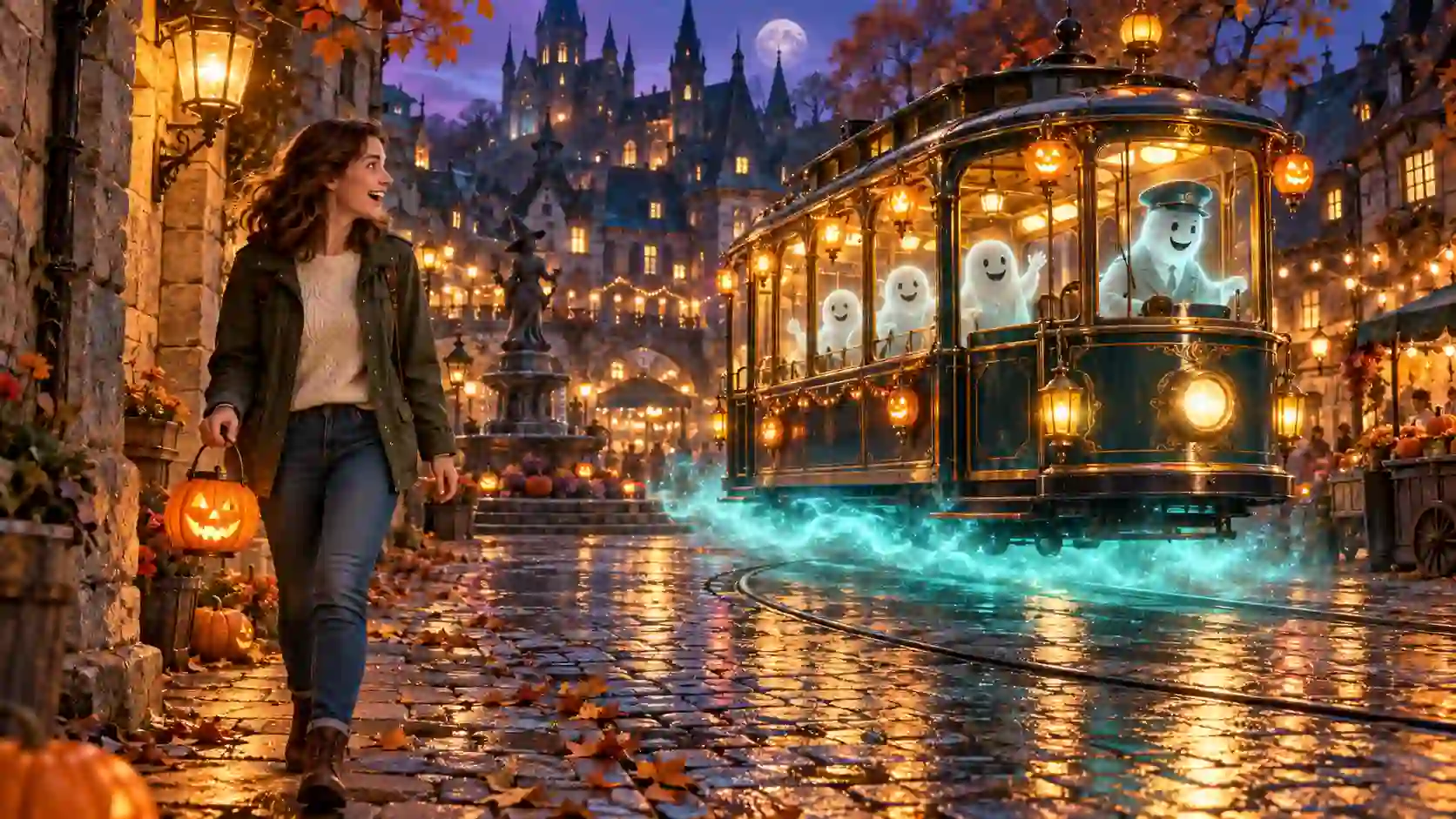
Your own image can become the starting point for a miniature adventure. Picture yourself carrying a pumpkin lantern through an ordinary street, then discovering a village of crooked houses and floating lights around the corner.
Choose one memorable event for the scene: a ghost tram arriving, a mailbox delivering a glowing letter, or a black cat leading you toward a mysterious doorway.
Give Your References Different Jobs
Start with a clear photo of yourself and, if your selected mode supports it, a separate image of the world you want to enter.
Identify which reference controls your appearance and which defines the environment.
Example prompt
Use the uploaded person photo for the adult character’s face and hairstyle, and the village image for the environment. The character walks slowly along a cobblestone lane carrying a small pumpkin lantern in the right hand. As they round a corner, a friendly ghost tram glides into the village square. The character stops and smiles in surprise. Gentle tracking shot, cozy Halloween atmosphere, soft lantern light, distant tram bell. Keep the face, outfit, and lantern consistent. No on-screen text.
When entering the prompt, connect the descriptions to the actual uploaded references using the options available in your interface.
Choose Your Halloween Mood
For a cozy version, use warm windows, soft mist, and friendly characters.
For suspense, use a quieter street, a distant sound, and a slower reveal.
The same idea can become a personal Halloween post or a party invitation featuring you as the host. Review your face and the lantern throughout the clip, especially during turns and changes in lighting.
3. Make a Halloween Costume Transition for Social Media
One turn, a whole new character.
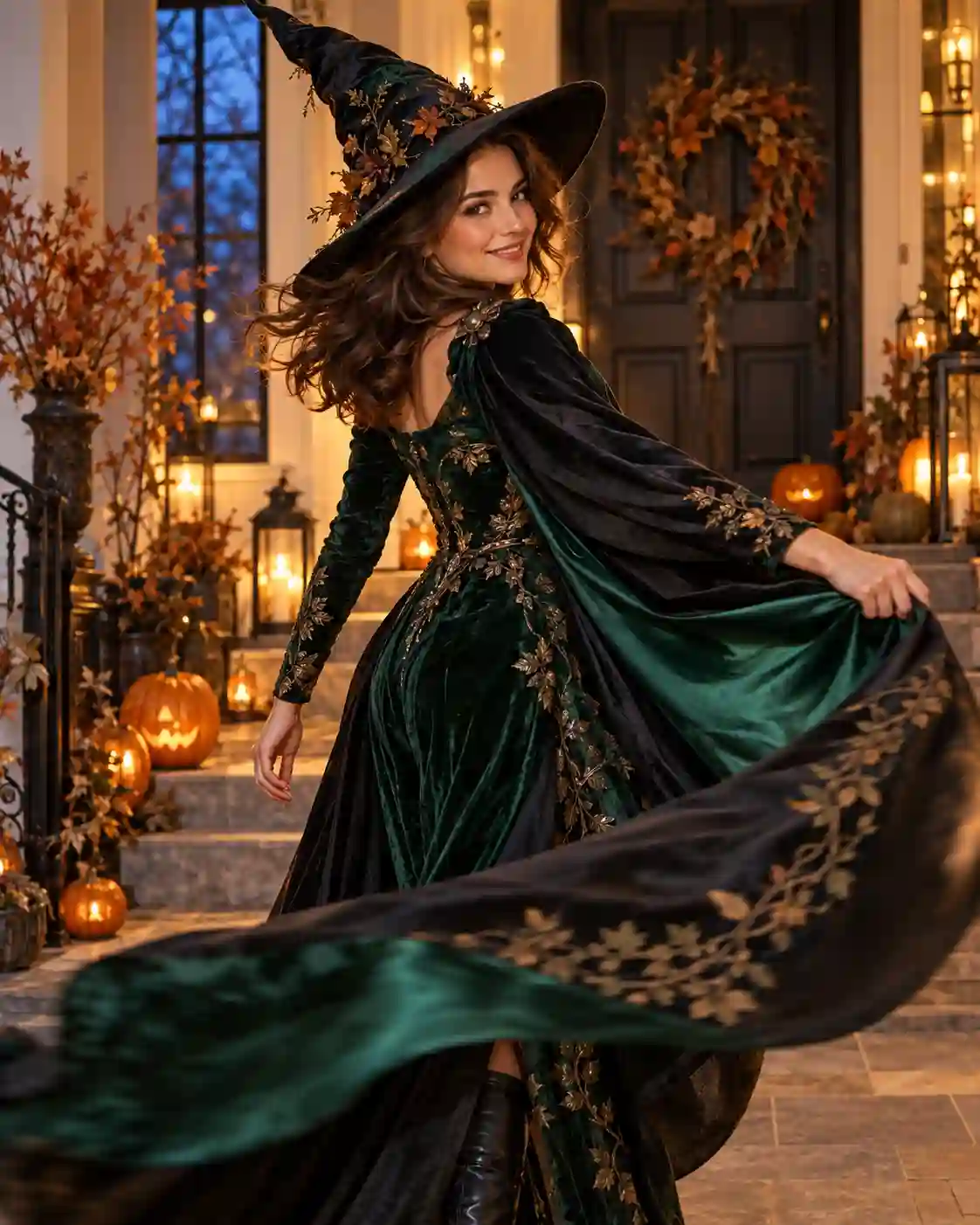
A Halloween costume transition gives a short social video a clear payoff. You begin in everyday clothes, turn behind a cape or another foreground object, and reappear as a forest witch, vampire, or original Halloween character.
A brief visual obstruction gives the outfit change a clear place to happen.
Prepare Two Compatible Looks
Use references with similar camera height, framing, and body orientation. Keep the face and hairstyle consistent unless the transformation specifically requires a change.
If your selected Seedance 2.5 Image-to-Video mode, it supports first and last frames, use them to define the two looks. Otherwise, use supported references and describe the change explicitly.
Example prompt
The opening reference shows the adult character in everyday clothing; the ending reference shows the same person in a forest-witch costume. The character begins facing the camera, turns smoothly, and sweeps a dark cape across the lens until it briefly covers the frame. As the cape clears, the same character completes the turn wearing the witch costume. Keep facial identity, body proportions, camera position, and background consistent. One continuous turn, realistic fabric movement, soft fabric swoosh, no text.
Check the hands, feet, and face around the transition. If the clothing melts gradually instead of changing cleanly, shorten the transformation and strengthen the moment of occlusion.
Make It a Shared Challenge
Have friends use the same turning action with different original costumes. Edit the clips together so one person’s turn leads into the next reveal.
A vertical composition can suit social feeds, but leave enough space for the cape and hands. Add music and time the reveal in your editor once the movement works.
4. Bring a Portrait to Life for Your Halloween Party
Let the decorations look back.
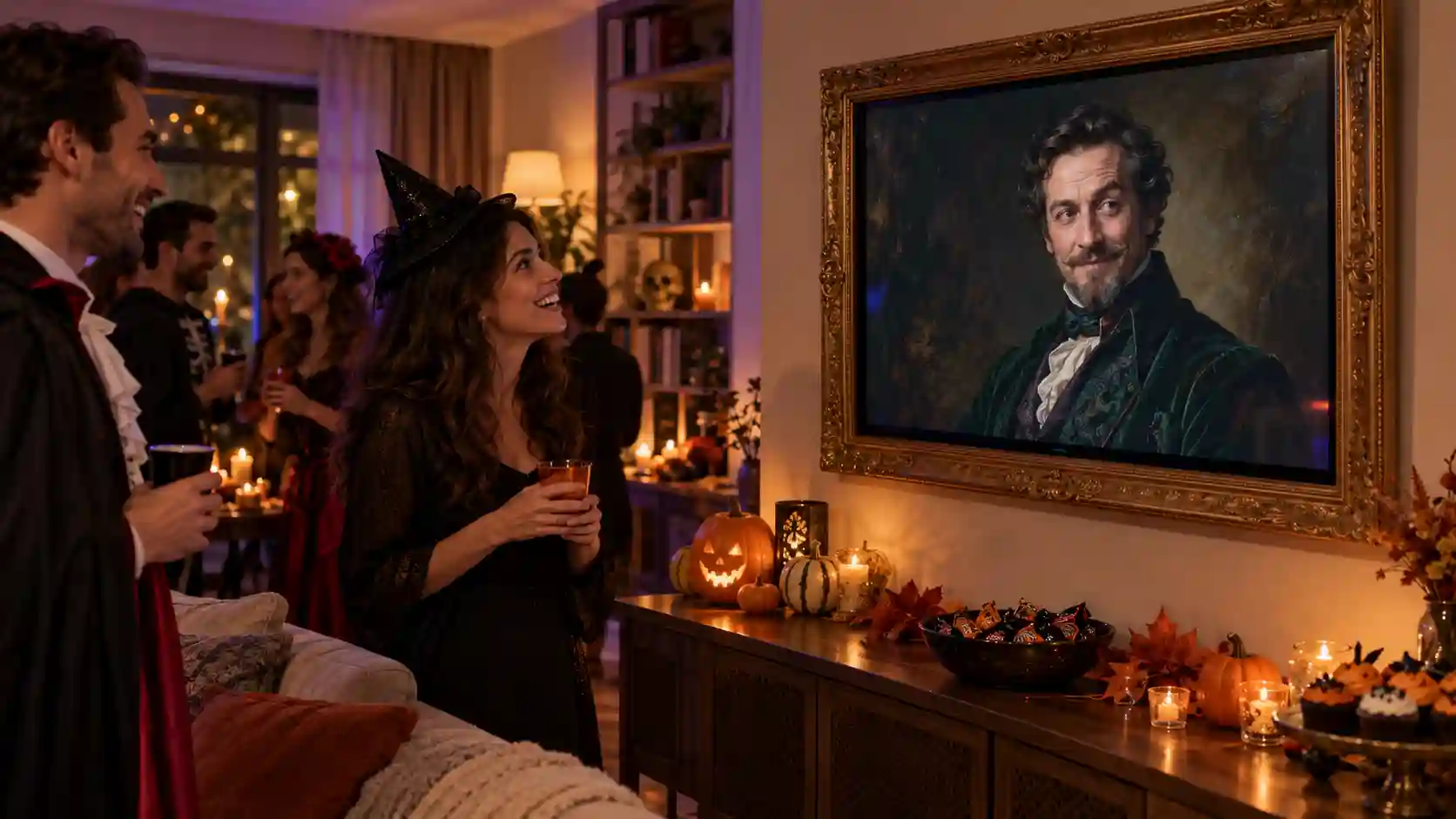
A Holloween living portrait creates its effect through restraint.
At first, guests see a still painting. Then the eyes shift, the figure blinks, and a small smile appears.
Use an original portrait or a photo you have permission to animate. Leave space around the head and shoulders, and match the composition to the screen or frame you plan to use.
Animate a Small, Deliberate Movement
Example prompt
Animate the uploaded portrait as a subtle living painting. Keep the composition, painted texture, clothing, and background fixed. The adult figure holds still, blinks once, slowly glances toward the left edge of the frame, then returns their gaze forward with a faint smile. Movement is limited to the eyes, head, and expression. Locked camera, steady candlelit appearance, no zoom, no movement of the picture frame, no text.
Start with one movement if the face or painted style changes too much. A single convincing blink can be more effective than a busy performance.
Make the Portrait Part of the Party
Play it on a tablet or monitor surrounded by a freestanding decorative frame, keeping the device’s ventilation clear. Place it near the entrance or beside other decorations.
For an upgraded version, create a separate speaking clip that gives a scavenger-hunt clue:
Look where the pumpkins keep their secrets.
Hide the next clue in a real pumpkin basket. Manually play the speaking clip when guests reach that stage of the game. The portrait now has a role in the activity, with no need to pretend it is responding live.
5. Welcome Trick-or-Treat with a Witch Projection
Turn your window into a witch’s workshop.
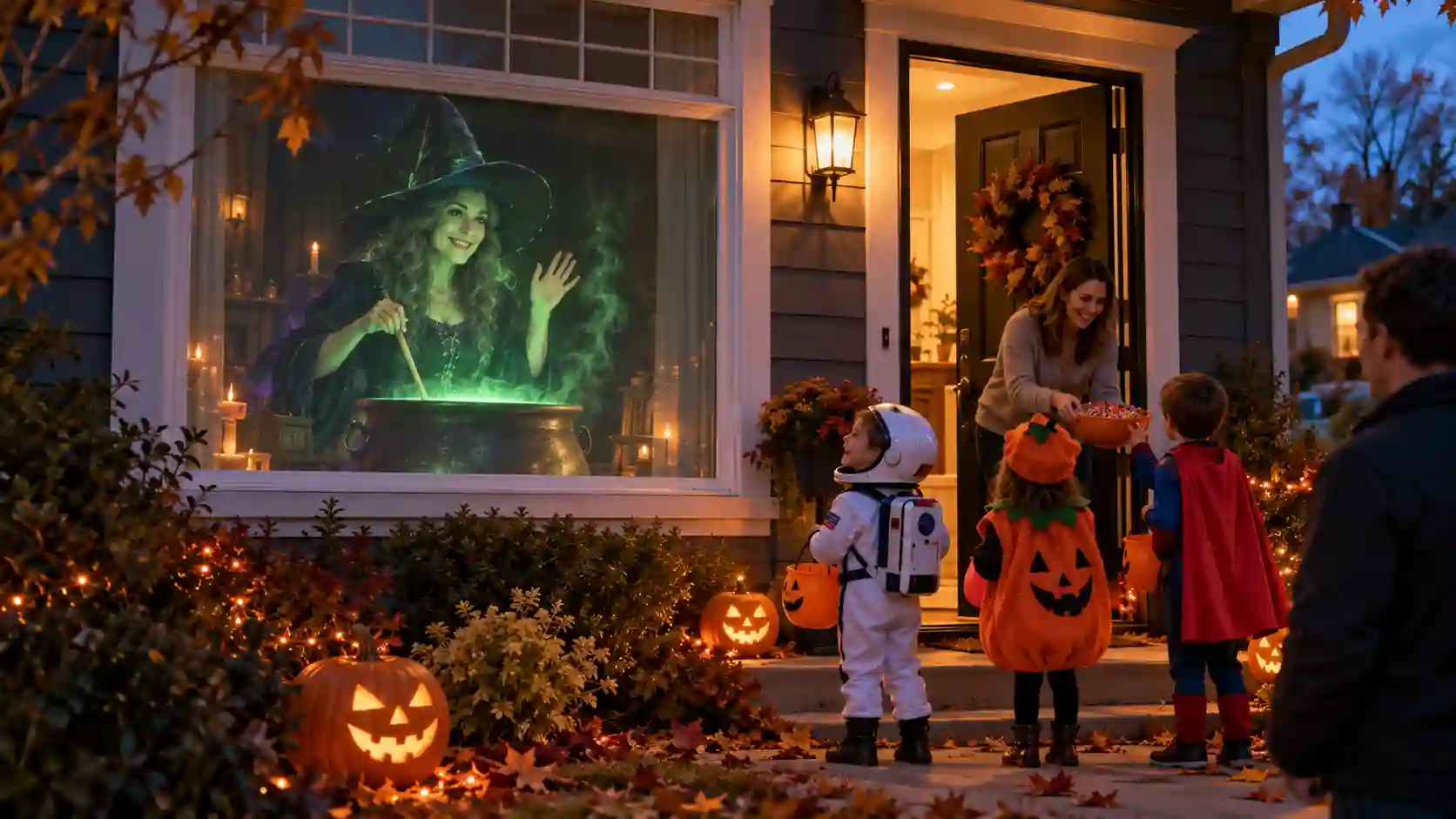
A looping witch video can make your house feel inhabited by a friendly magical neighbor. She stirs a cauldron, watches the steam, occasionally glances outside, and returns to her work.
The effect depends on a stable scene. The witch should move inside the window; the camera should stay still.
Make a Quiet Loop First
Prepare a reference image with the witch, her hands, and the cauldron comfortably inside the frame. Leave room for steam without letting it cover her face.
For a projection effect, a dark background can help the illuminated character stand out, although the result depends on your projector, screen material, and ambient light. For a TV display, a complete workshop background may work better.
Example prompt
Use the uploaded witch image as the visual reference. A friendly storybook witch slowly stirs a cauldron in a dim workshop. Keep the camera completely locked. Her shoulders move gently, the spoon follows a small steady circle, and a thin trail of green steam rises. She briefly looks toward the viewer with a welcoming smile, then returns to stirring in approximately her starting pose. Keep the cauldron, furniture, framing, and lighting stable. Quiet bubbling, no sudden loud sounds, no text.
Asking for a return to the starting pose gives you a useful editing target, but it does not guarantee a seamless loop. Compare the beginning and ending, trim to similar moments, and try a short dissolve where appropriate.
Add a Trick-or-Treat Welcome
Create a separate welcome clip using the same reference. Have the witch pause, wave, and say:
Trick or treat? A little magic, a little sweet!
You can add that line as a recorded voiceover if needed. Play the quiet loop while waiting, then manually switch to the welcome clip as visitors arrive and hand out candy.
Test the Actual Display
Try the video on a TV near the window or a projector with a suitable projection screen. Check it from the position where visitors will stand.
Prepare Your Halloween Video for Sharing or Display
Finish for the place it will play.
Before generating, open the Seedance video workspace and check the reference options, duration, and aspect ratios available for your selected model and mode.
For these Seedance 2.5 Halloween prompts, begin with one clear action. Review the first draft and change one main instruction at a time.
For social posts: Check the crop on a phone. Keep the important action visible and add readable greeting text afterward.
For repeated playback: Watch several loops in a row. Check both visual joins and repeated sound effects.
For party screens and projections: Test at the intended size, location, and lighting level. A clip that looks good on a laptop may need different framing or brightness on display.
For invitations and clues: Add exact names, dates, addresses, and instructions in an editor so you can proofread and update them easily.
Make Halloween a Little More Your Own
A small scene can become part of the celebration.
Choose where your creation will live: a friend’s phone, your front window, a party wall, or your social feed.
Start with one character and one memorable action, then build on the result.
Create your first Halloween video with Seedance AI Video Generator and turn a simple idea into something your guests can watch, share, or play along with.
Create Your AI Halloween Video NOW
Seedance 2.5 Halloween Creation FAQs
What kind of photo works best for an AI Halloween video?
Use a sharp, well-lit photo with an unobstructed face and enough surrounding space for the planned movement.
Match the framing to the action: a portrait can support subtle facial animation, while a walking scene benefits from a wider reference.
Can I make a Halloween display without a projector?
Yes. A TV can become a witch’s workshop window, a tablet can sit beside a candy bowl, and a monitor can display a living portrait. Design the video around the screen you already have.
How do I make a witch video loop more smoothly?
Keep the camera and lighting stable, use small movements, and aim for similar starting and ending poses. Trim the clip at compatible moments and test a short transition. A dissolve can help, but mismatched objects or positions may require a new generation.
Can I reuse the same character in several Halloween clips?
Reuse the same visual references and repeat the details that matter, such as clothing, hairstyle, props, and setting. Generate each action separately and compare the results before assembling them into a sequence.
Related Articles
How to Make Your Own Hotel Lobby AI Video with Seedance 2.5
Learn how to make your own Hotel Lobby AI video with Seedance 2.5, plan character and motion references, and explore five creative duo ideas.
Seedance App: Create, Edit and Extend Videos on Your Phone
Create AI videos with the Seedance app for iPhone and Android. Explore Seedance 2.5, animate photos, guide transitions, and edit or extend your clips.