Seedance 2.5 + GPT Image 2.5 Workflow: Design to Video
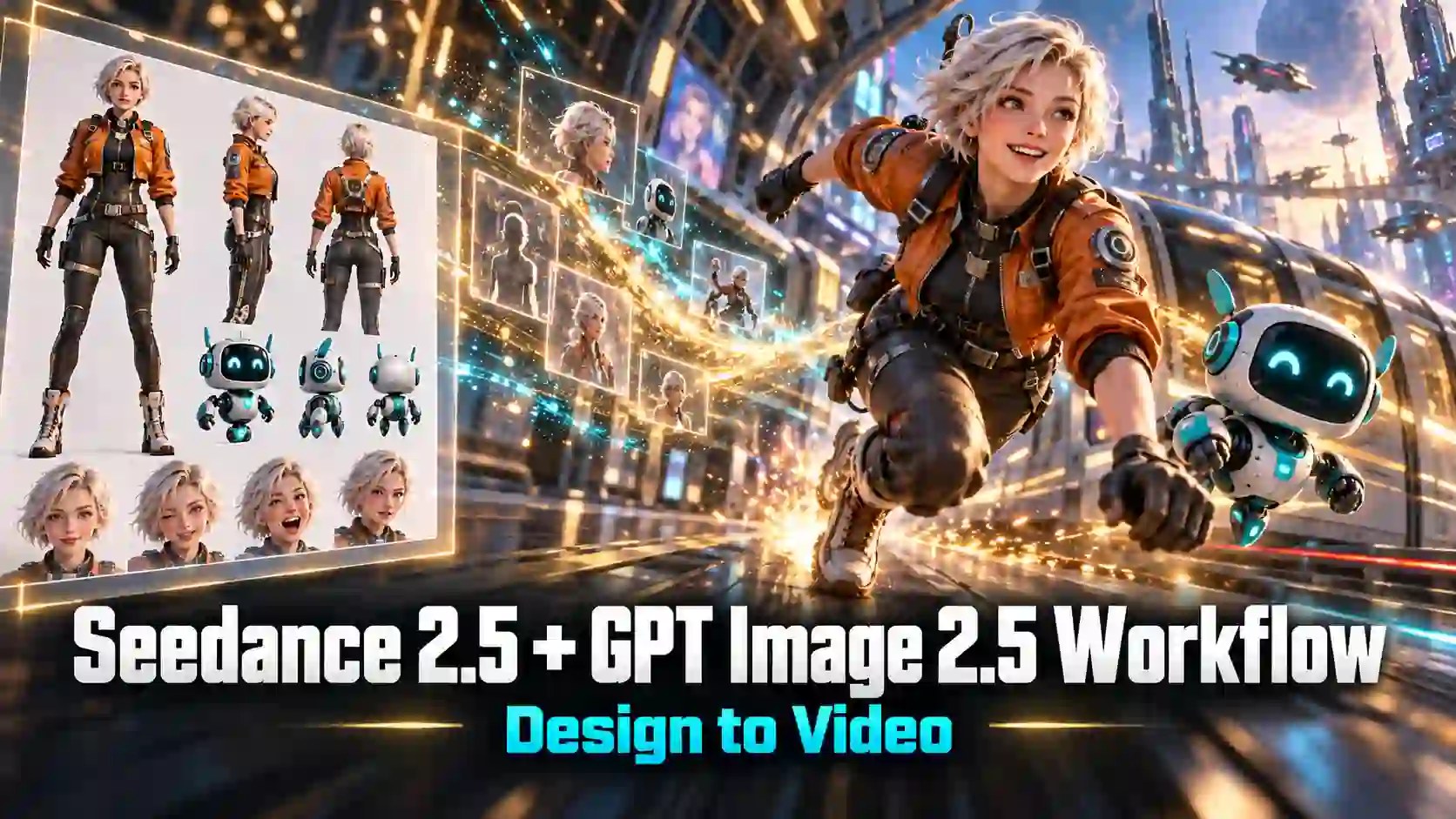
Turn character designs, posters, and UI concepts into moving scenes with a Seedance 2.5 + GPT Image 2.5 workflow. Use GPT Image 2.5 to prepare the visuals, then direct the action and camera movement with Seedance 2.5.
Explore four creative examples, with practical tips for preserving design details and creating purposeful motion.
TL;DR: Seedance 2.5 + GPT Image 2.5 Workflow
Settle the design before directing the action. Clear characters, props, and style references give the video a more specific starting point.
Tell Seedance what each reference is for. Appearance references and action sequences serve different purposes.
Match the video to the task. A short character move may communicate more effectively than a complicated multi-shot scene.
Review what changes over time. Check identity, object interactions, style, and interface details throughout the clip.
Try Seedance 2.5 Video Generator NOW
How GPT Image 2.5 and Seedance 2.5 Work Together
Define the design. Direct the motion.
The value of this AI image-to-video workflow is the opportunity to resolve visual choices before asking for movement.
Stage | GPT Image 2.5 task | Seedance 2.5 task |
Character design | Prepare appearance, clothing, and expression references | Develop performance and movement around those references |
Scene and props | Establish environments, objects, and visual relationships | Organize interactions and camera coverage |
Visual style | Explore a consistent palette and rendering approach | Carry that direction into a moving scene |
Revision | Correct problems in the source artwork | Refine action, pacing, and shot direction |
These are complementary tasks, not a guarantee of perfect preservation. A useful design reference reduces ambiguity, but motion can still introduce changes that need review.
Prepare Design References That Are Ready for Motion
Give every reference a clear job.
Make Character and Object Details Easy to Read
For a GPT Image 2.5 character reference sheet, prioritize recognizable features: silhouette, hairstyle, clothing colors, distinctive accessories, and any object the character will handle.
For example, a bartender’s face is only part of the design. The shaker, glass, outfit, and finished drink also help define the scene.
Use clear views rather than filling the sheet with tiny details.
If an important prop becomes difficult to read, prepare a separate image.
Check that additional views do not contradict the main design.
Separate Appearance References From Action References
Different references answer different questions:
Appearance reference: What should the character or object look like?
Opening frame: Where should the video begin, and how should it be composed?
Action or storyboard reference: What should happen, and in what order?
A front, side, and rear character sheet does not automatically describe three consecutive shots. Tell the model whether a sheet defines identity or a sequence.
When preparing an opening frame, also leave enough space for the intended movement.
Four Design-to-Video Examples
Choose the motion that serves your design.
From a Design Board to a Cinematic Sequence
The tropical bartender example pairs a detailed design board with an animated sequence underneath. The board includes character views, expressions, accessories, bar tools, fruit, and cocktails.
The video moves beyond a single animated portrait. Its shots include a facial close-up, the bar environment, citrus details, shaking, pouring, and presenting a finished drink. This makes it a useful character design board to video example: several pieces of visual design contribute to one recognizable activity.
For a similar workflow, use GPT Image 2.5 to prepare the character and key objects, then give Seedance 2.5 a clear action progression. The sequence should make sense before adding elaborate camera movements.
Try this:
Organize the scene as preparation, mixing, and presentation.
Use a wider shot to establish the character and a closer shot when the tool or drink becomes important.
Best suited to:
Character introductions, virtual brand personalities, and short promotional stories.
A Stylized Character Poster Becomes an Action Short
The action example pairs a stylized character poster with a neon-lit fight sequence. Dark hair, facial hair, and a suit provide recognizable visual anchors as the video shifts between different framings.
The poster’s red-and-white presentation does not become the video’s entire color scheme. The moving scene uses cyan and magenta lighting. The practical lesson is that character identity and scene lighting can have different roles.
In a GPT Image 2.5 to Seedance 2.5 workflow, establish the character’s essential features first. Then describe the environment, performance, and camera direction separately. This allows a promotional short to expand the design rather than merely pan across the poster.
Try this:
List the features to preserve, then name what may change.
Keep the hairstyle, outfit, and stylized rendering while allowing a new location and lighting setup.
Best suited to:
Stylized character animation, character launches, and action-focused promotional clips.
Character Poses Become a Sprite-Style Action Preview
The brief pink-haired character example shows a larger animated figure above two rows of small poses. The visible sequence includes a guard-like stance, an arm movement, a high kick, and a return toward the standing pose.
Its value lies in showing how the character reads in motion: the silhouette, outfit, hair, and action shape become easier to evaluate than in isolated images.
For a similar character pose animation project, prepare clear poses with consistent proportions and clothing. Then request a short action with a defined beginning and ending.
Try this:
Use a fixed camera and a simple background for the first test.
Describe one action combination before introducing camera changes or environmental effects.
Best suited to:
Sprite-style animation previews, character promotion, and communicating an animation direction.
Character and UI Designs Become a Game Concept Demo
The cybernetic character example develops a broader experience. It moves from a character menu to equipment customization and character inspection, then through a loading transition into a third-person urban scene with a game-style HUD.
The recurring hairstyle, clothing, body markings, and mechanical limbs connect the interface presentation with the world view. The result communicates a possible player journey rather than only showing an attractive character.
For a similar AI game concept video, prepare the character, interface states, and environment as related assets. Use Seedance 2.5 to explore how the presentation could move between them.
Try this:
Write the sequence as clear states: view character, select equipment, inspect the result, enter the environment.
Keep each transition focused on one change.
Best suited to:
Game pitches, visual preproduction, and promotional concept demos.
Build Your Seedance 2.5 Video From the Prepared Designs
Turn visual references into a clear action brief.
Upload References and Assign Their Roles
Open the Seedance 2.5 generator and choose the mode that fits your material.
Use an image-to-video workflow when a particular opening composition matters. Use the available multi-reference workflow when separate images need to guide the character, setting, or props.
In multi-reference mode, use the interface’s reference insertion control to identify uploaded assets. Explain each asset’s role rather than assuming every image has equal importance.
Describe the Action, Camera, and Ending
A practical structure for Seedance 2.5 multi-reference prompts is:
Reference roles + subject action + camera direction + features to preserve + ending state.
Here is an adaptable example. Insert the actual uploaded references using the generator’s controls.
Prompt Example:
Use the character reference for the person’s appearance and outfit, and the environment reference for the workshop. The character picks up the device from the table and turns toward the doorway as the camera slowly moves closer. Preserve the costume colors and device shape. End with a clear view of the character holding the device.
This gives the model a purposeful action. Repeating the full image-design prompt may add detail without clarifying what should happen.
Test a Short Sequence Before Expanding It
Start with the smallest clip that tests the key idea.
For a product interaction, that may be picking up an object.
For a character, it may be a turn or gesture.
For a game concept, it may be one interface transition.
Review the result before adding more shots. The generator also provides editing and extension options for supported tasks; use the matching mode when you intend to modify or continue an existing clip.
Animate Your Designs with Seedance 2.5
Check What Changes Once the Design Starts Moving
Review the sequence, not just the opening frame.
The character’s appearance changes.
Remove conflicting references and identify a few essential features, such as hairstyle, outfit silhouette, and signature accessories. Check those features across the clip.
An object changes shape during an interaction.
Simplify the action and keep the object visible. Test one pickup, pour, or handoff before combining several complex interactions.
The visual style drifts.
Use compatible references and consistent rendering language. Requests for both flat sprite artwork and realistic skin or lighting can introduce competing directions.
UI text or layout becomes unstable.
Separate a concept demonstration from exact interface delivery. If accurate labels matter, add verified text or UI overlays during editing.
The camera hides the design.
Reduce camera complexity. A slower move or fixed view may communicate costume, material, or gesture details more clearly.
Bring Your Next Design Into Motion
Start with one design and one meaningful action.
Choose a character, identify the details that make it recognizable, and give it a clear action with a defined ending.
Expand the sequence once that foundation works.
Create with Seedance 2.5 Online
Seedance 2.5 + GPT Image 2.5 workflow FAQs
Do I need a complete storyboard for every video?
No. A single gesture or short action preview may only need a clear reference and a concise motion prompt. A storyboard becomes more useful when several shots or interface states must follow a particular order.
Can I use existing artwork instead of generating new references?
Yes. Existing character designs, illustrations, and concept images can provide a starting point in supported workflows.
Use material you have permission to upload, and check the generator’s current reference requirements.
Should I upload a full design sheet or separate images?
Use a design sheet when its important details remain readable.
Separate images can be more useful for a small prop, a specific face view, or a setting that gets lost in a crowded board.
More references are not automatically better.
Should reference images match the final video’s aspect ratio?
Matching the intended frame is helpful for an opening image because cropping affects composition.
An appearance reference serves a different purpose and does not necessarily need the same framing.
Check the selected mode’s input requirements.
Related Articles
Seedance 2.5 vs Wan 3.0: Features and Video Quality
Compare Seedance 2.5 vs Wan 3.0 on creative control, editing, audio, and video quality, with a closer look at sci-fi, animation, dialogue, and action.
Seedance 2.5 + Codex: From Blender Blockout to AI Video
Learn how to use Codex and Blender to build a white-model reference, refine a train shot, and create three visual styles with Seedance 2.5.