Seedance 2.5 + Codex: From Blender Blockout to AI Video
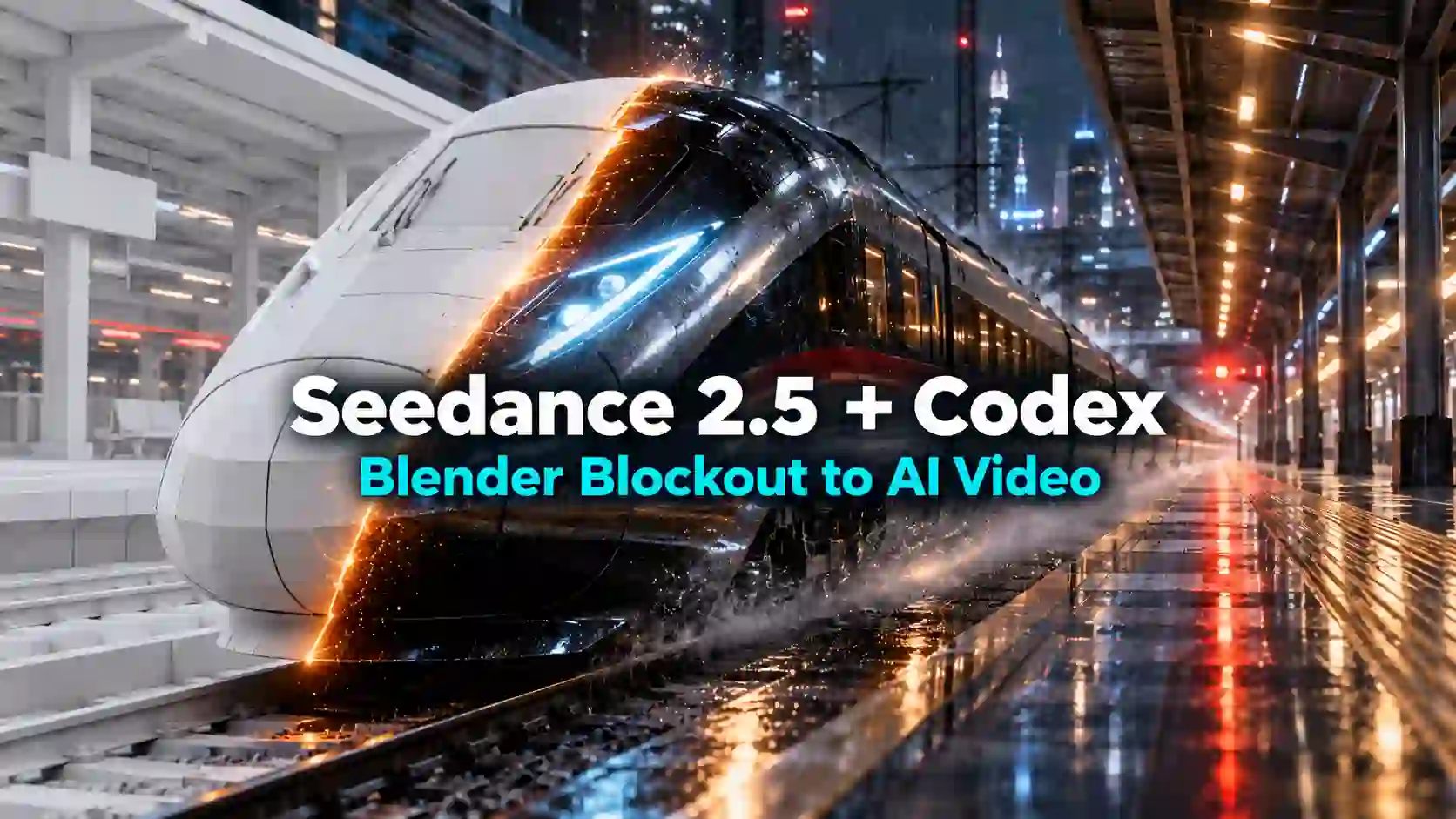
A train approaches a platform through morning mist. The same shot becomes a steam railway at dusk, then a futuristic station in the rain. Each version starts with one simple Blender animation.
This Seedance 2.5 Codex workflow uses a Blender 3D blockout, a simplified scene without detailed textures, to establish the camera, layout, and movement before generating the finished look. Codex assists with Blender scripting, while the exported white-model video becomes a reference for Seedance 2.5.
The train-station case below shows how to build that reference, correct an obstructed view, and explore three visual directions.
TL;DR: Seedance 2.5 Codex Workflow
A useful Blender white model animation needs readable geometry and clear motion; detailed materials can come later.
Ask Codex for an editable scene and preview frames so you can correct framing before exporting.
Reuse the reference to explore different eras, lighting, and weather while requesting consistent movement.
Clay render to AI video workflows still require review: platform edges, tracks, and other details can change during generation.
Try Seedance 2.5 Generator Online
Build a Blender Blockout with Codex
Give the shot a clear structure before adding visual detail.
Start with Blender installed and accessible to Codex. Codex can write and run scripts using local tools, making it useful for constructing and revising a scene through code. You still decide whether the resulting shot meets your brief.
Define the Shot Before Modeling
To create a Blender animation with Codex, describe what the camera must see and how the subject moves.
For this example, the essential requirements are a station, a fixed platform camera, and a train approaching over five seconds.
An adapted starting prompt:
“Create a simple train-station blockout in Blender with tracks, two platforms, a canopy, pillars, and a four-car train. Place a fixed camera at eye level on the right platform, looking down the tracks. Animate the train approaching from the distance and gradually slowing over five seconds. Save the Blender scene and Python script, then render preview frames from the beginning, middle, and end.”
Specify the deliverables as well as the scene. Keeping the script and .blend file makes later camera, timing, and layout changes easier.
Generate the Scene and Animation
In this case, Codex built the station from basic geometry and created the train animation with a Blender Python script.
Platforms, tracks, pillars, and the canopy established depth; simple train shapes communicated position and scale.
Keep this Codex Blender workflow focused on the visible shot. Model the objects that affect framing or movement, and review the camera view before adding secondary details.
For a broader explanation of scene planning and spatial continuity, see the 👉 GPT-6 Astra + Blender + Seedance 2.5 workflow.
Preview, Fix, and Export Your White-Model Reference
Fix the framing while the scene is still easy to change.
The initial station preview exposed a practical problem: the camera was too high, and the foreground canopy obstructed the view. A pillar also interfered with the composition.
The correction lowered the camera beneath the canopy to platform eye level and moved the obstructing pillar back. That made the tracks and approaching train easier to read.
Review the beginning, middle, and end of the animation
Can you see where the train enters?
Does the train remain readable as it approaches?
Do foreground objects hide an important part of the action?
Does the final position fit the frame?
Ask Codex for targeted changes, such as lowering the camera or repositioning a pillar. Then render new previews to check the correction.
Once the framing works, export a Blender reference video. The case used 120 frames at 24 fps to produce a five-second, 1280 × 720 reference.
These are example settings, not mandatory Seedance 2.5 specifications.
You can export the rendered frames as a PNG sequence and assemble them into an MP4. This is also a useful fallback if direct video export is unavailable in your Blender setup.
Play the complete reference before uploading it to check for jumps, unintended camera movement, or an abrupt ending.
Turn the Blender Reference into Video with Seedance 2.5
Describe what should stay consistent and what should change.
Seedance 2.5 includes white-model control and reference-video capabilities intended to guide framing and cinematic structure. That makes a blockout a useful starting point for visual development.
To apply this approach,
open the 👉 Seedance 2.5 generator,
choose Multi-Reference,
upload your MP4 under Reference Videos.
Type @ in the prompt field and select the uploaded clip to identify its role.
For a matching test, choose a five-second duration and 16:9 aspect ratio.
Separate Motion Instructions from Visual Style
An effective Seedance 2.5 video reference workflow tells the model how to use the clip.
Make the structural request explicit, then describe the desired appearance.
Use this adapted base prompt after inserting the video reference:
“Use @Video1 as the reference for composition and movement. Keep the camera fixed on the right platform. Follow the train’s approach from the distance toward the foreground and its gradual slowdown. Preserve the broad platform layout and perspective. Render the scene in the visual style described below, without adding camera movement or reversing the train’s direction.”
Select the actual uploaded reference through the interface rather than assuming its label. These instructions express the intended constraints; check the result for adherence.
Reuse the Reference for Three Looks
Keep the base instructions consistent and append one visual direction per generation. The documented example explored these three treatments:
Visual direction | Short style addition |
Misty High-Speed Station | A modern station in soft morning mist, a silver-white high-speed train, cool natural light, and damp platform tiles. |
Steam Train at Dusk | A 1930s European station with a dark green steam train, riveted metal, warm platform lamps, sunset light, and a subtle 35mm film look. |
Futuristic Station in the Rain | A near-future elevated Asian station, a streamlined maglev train, blue city lights, warm signals, wet reflections, and drifting mist. |
This keeps the reference's role clear while giving each version a distinct appearance. If you later change the train's path or the camera position, revise the blockout before generating again.
Try Seedance 2.5 Generator NOW
Check What the Reference Preserves and What Changes
Compare the structure as carefully as the style.
When reviewing your own outputs, compare the reference and generated video at corresponding moments.
Check the fixed camera, travel direction, train scale, slowdown, and visibility beneath the canopy.
Watch the complete clips as well: matching still frames cannot establish smooth motion.
Seedance 2.5 white model control provides guidance, not exact geometric reproduction. If precise layout matters to your project, inspect those details before accepting the shot.
For the next iteration, identify where the problem starts.
Correct unclear framing or movement in Blender; revise appearance instructions when the reference is readable but the generated style misses the brief.
Common Problems and How to Fix Them
What if the generated camera moves despite a fixed reference?
Check that the uploaded clip is selected in the prompt and explicitly assigned as the composition and motion reference.
Remove conflicting directions such as “tracking shot” or “orbit,” and request a fixed camera throughout.
Generate a short test and compare it with the reference; wording alone does not guarantee a match.
What if the action feels rushed or stops abruptly?
Play the white-model clip first. If its timing is wrong, adjust the train’s keyframes or slowdown in Blender.
If the reference plays correctly, check the requested output duration and simplify the action instructions before testing again.
What if each revision creates a different problem?
Save the last usable scene, prompt, and output. Change one category at a time, camera, movement, or appearance, so you can judge what helped.
This makes the Seedance 2.5 Codex workflow easier to refine without losing a working setup.
Bring Your Blender Blockout to Life
Codex helps turn a shot brief into an editable Blender scene, and Seedance 2.5 uses the exported reference to guide visual generation.
A clear blockout gives you a practical foundation for testing different looks and refining the result.
Start with a five-second scene, check its framing and movement, and try different styles with Seedance 2.5.
Seedance 2.5 Codex Workflow FAQs
Do I need Blender experience to use this workflow?
Codex can assist with scene creation and scripting, but basic familiarity with Blender helps you inspect the camera, timeline, and output. Begin with simple geometry and one moving subject.
Can I upload a Blender file directly to Seedance 2.5?
For this workflow, export a video such as MP4 and upload it as a reference. Keep the .blend file locally for revisions; it is not a supported video-reference format on the generator page.
Do I need a different blockout for every visual style?
You can reuse a blockout when the composition and action remain the same. Update it when you change the camera, spatial layout, or movement that the reference needs to communicate.
Choose a short shot you can judge clearly, build its reference, and use the results to refine your next decision.
Related Articles
Seedance 2.5 vs Wan 3.0: Features and Video Quality
Compare Seedance 2.5 vs Wan 3.0 on creative control, editing, audio, and video quality, with a closer look at sci-fi, animation, dialogue, and action.
GPT-6 Astra + Blender + Seedance 2.5: AI Video Workflow
Learn how GPT-6 Astra, Blender, and Seedance 2.5 combine 3D previs, camera planning, white-model references, and AI video generation in one workflow.