Seedance 2.5 Lip Sync: Talking Video Guide
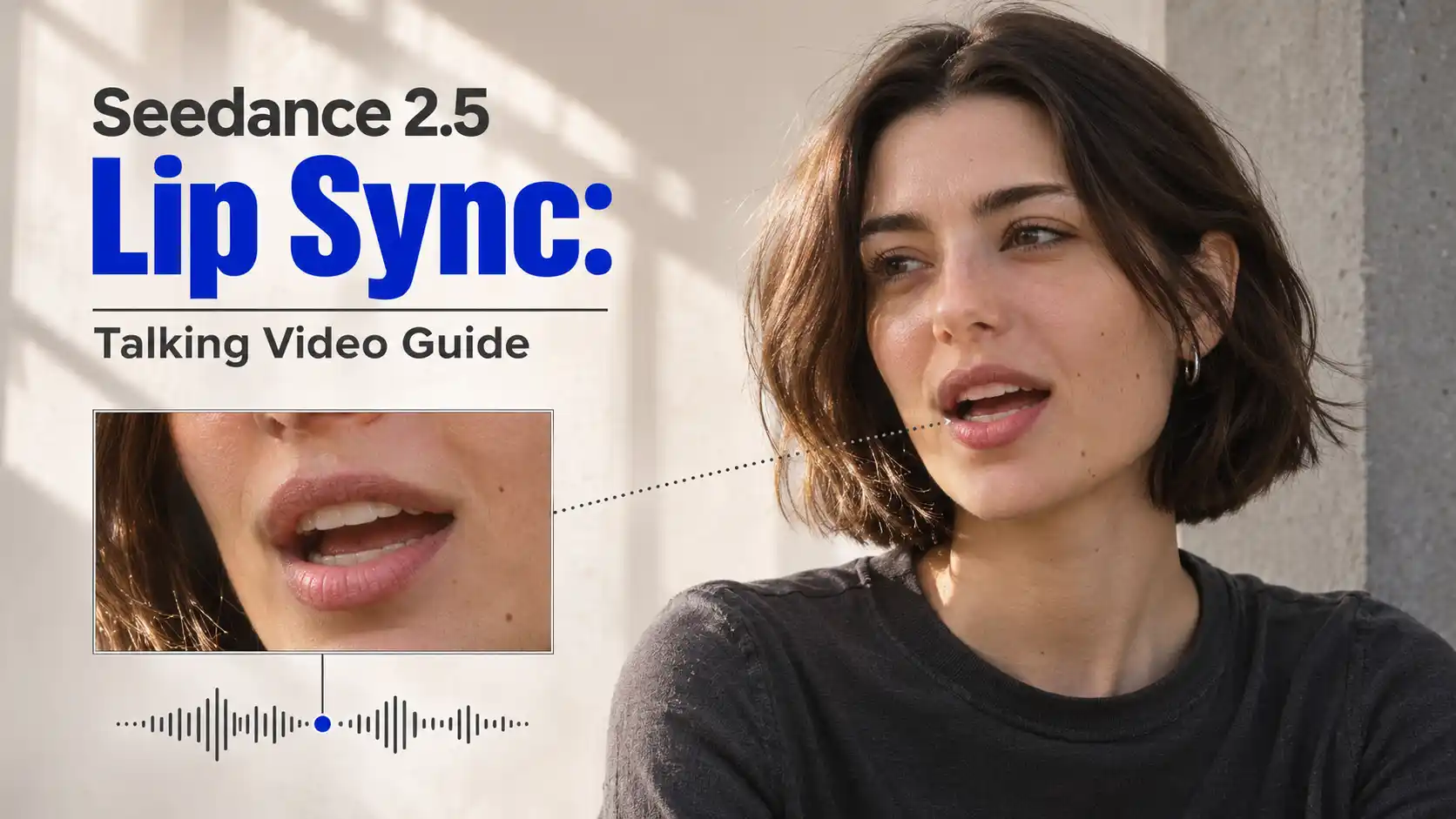
This guide explains how to create Seedance 2.5 lip sync videos from an image and recorded speech, using three practical tests to show what to look for and how to direct your own results.
TL;DR: Seedance 2.5 Talking Video Creation
Give each input a role: the image establishes the scene, the recording supplies the speech, and the prompt directs the performance.
Keep audio and video lengths close. Extra silence can interrupt the rhythm; intentional pauses should support the performance.
Look beyond the mouth. The tests showed a meaningful product gesture, a natural thinking pause, and coherent movement in a 3D mascot’s head.
Review the complete result: spoken words, mouth timing, gestures, speaker assignment, and character consistency.
What Is Seedance 2.5 Lip Sync?
Give speech a visible performance.
Seedance 2.5 supports joint audio and video generation with reference inputs. For an image-and-audio talking video, the practical goal is to coordinate the voice with the character’s mouth, expression, and movement.
Think of your inputs as three connected instructions:
Input | Main role |
Reference image | Appearance and scene |
Speech recording | Words, delivery, and timing |
Prompt | Performance and visual direction |
A useful performance supports the meaning of the speech. Matching mouth movement is one part of that task; directing attention and responding at the right moment also matter.
Prepare Your Image and Speech Audio
Clear inputs make the performance easier to direct.
Choose an Image That Supports the Action
The image should make the intended behavior possible to see. Keep the mouth unobstructed and leave enough room for the relevant movement.
Product presentation: show the hands and the feature being discussed.
Two-person dialogue: keep both faces visible and easy to distinguish.
3D character animation: use a clear mouth design and recognizable head proportions.
A detailed background can add atmosphere, provided it does not compete with the face or product.
Finish the Recording Before Generating
Listen through the entire audio file. Confirm the wording, delivery, pauses, and sentence endings before uploading it.
For a two-person conversation, use distinguishable voices and combine the turns into one finished recording. That gives you a clear sequence to map to the characters.
Match the Video Length to the Performance
Avoid a large mismatch between audio and video duration. If the speech ends well before the clip does, the remaining time may introduce an awkward pause and weaken the video’s rhythm.
Leave breathing room when it serves a purpose: a moment to consider a question, emphasize a point, or let viewers examine a feature. Avoid adding silence simply to fill a target runtime.
How to Create a Talking Video with Seedance 2.5
Connect each file to a clear role.
The Svido Seedance 2.5 Generator provides a Multi-Reference workflow for image and audio inputs.
Step 1: Select Seedance 2.5 and open Multi-Reference.
Use the workflow that accepts your image and speech recording.
Step 2: Upload the finished files.
Choose the reference image and the final audio track.
Step 3: Assign the references in your prompt.
Use the interface’s @ picker to insert the uploaded files, then explain what each should control.
Step 4: Describe the performance.
Identify the speaker, relevant gestures, camera framing, and details to preserve.
Step 5: Check the output settings.
Choose a suitable aspect ratio, resolution, and duration close to the recording. Review the displayed cost before generating.
Step 6: Generate, review, and save.
Download the output and keep its inputs, prompt, and settings so you can make a targeted revision.
Start with one clear performance requirement. Once it works, you can evaluate whether additional movement would improve the scene.
Three Seedance 2.5 Talking Video Tests
Look for coordination between words, behavior, and form.
The following tests examine three different demands: communicating a product detail, creating an exchange between speakers, and animating a non-human character. They illustrate behavior in individual outputs rather than establishing a general success rate.
Product Presentation: A Gesture That Follows the Meaning
What happened: When the narration reached a specific product detail, the presenter used a finger to emphasize it. The gesture was accurate and natural, connecting the spoken information to the relevant part of the product.
That alignment suggests an ability to interpret the scene’s communicative intent. The presenter was doing more than delivering a line: the movement helped viewers understand where to look.
Apply the lesson: Make the feature visible in the reference image, then describe a small, purposeful gesture.
For example:
When the narration mentions the controls, briefly indicate that area with one finger. Keep the product and the presenter’s mouth visible, then return to a relaxed holding position.
This is a direction to try, rather than a retested guarantee. Review the hands, product shape, and mouth movement together; an effective gesture still needs to fit the rest of the shot.
Two-Person Dialogue: A Thinking Beat That Creates Interaction
What happened: After the man asked a question, the woman briefly paused and appeared to think before answering. The reaction was logical and natural, helping the scene feel like an exchange between two people.
This shows why a pause can improve a talking video. Here, it had a clear function: the listener was processing the question.
Apply the lesson: If you want a thinking beat, leave room for it in the recording and connect the direction to that gap:
During the gap between the question and answer, let the listener briefly consider the question. Begin the spoken response when the answer starts in the recording.
The distinction is timing. A short reaction between turns can support interaction; a thinking gesture that delays speech after the answer has already started creates a mismatch. Check the speaking character and the listener at each handoff.
3D Mascot: Coherent Movement Across the Whole Head
What happened: The speaking mascot’s whole head changed naturally and coherently. Its movement supported the character’s physical form, showing promising consistency for this non-human design.
For a 3D character talking video, the mouth is only one area to examine. The muzzle, ears, head shape, and connection to the body should work together as the character speaks.
Apply the lesson: Describe the form you want to preserve and keep the motion appropriate to the design:
Preserve the character’s original muzzle, ears, head proportions, and material. Let the head and jaw move naturally with the recording, using restrained motion consistent with the character’s design.
Different character designs still need their own checks. Review the head throughout the line, especially during larger movements, rather than judging the result from a single attractive frame.
Start Creating AI Talking Video
How to Write Clear Seedance Lip Sync Prompts
Assign the voice, then direct the behavior.
A useful prompt explains who speaks, which recording to follow, and how the visible performance should support it. Keep the directions concrete enough to evaluate.
Start with a Clear Base Prompt
Replace the bracketed references below using the tool’s @ picker:
Use [image reference] for the character’s appearance, clothing, scene, and visual style. Use [audio reference] as the spoken performance, preserving its words, voice, pauses, and timing. Keep a steady medium shot with the mouth visible. Let expressions follow the delivery, with small gestures that support the meaning. Preserve the character and relevant props. No additional dialogue, subtitles, or camera cuts.
These instructions describe the intended output. You still need to listen and watch to confirm what the generation preserved.
Map Each Voice to a Character
For multi-speaker lip sync, identify the characters with visible details and connect them to the voices.
For the dialogue setup used here:
The lower male voice belongs to the man on the left. The female voice belongs to the woman on the right. Only the current speaker articulates the words; the listener responds with subtle attention.
Tie Actions to Spoken Cues
“Make it engaging” leaves the performance open-ended.
A more useful instruction connects three things:
Spoken cue → visible target → completed action
For example, a mention of the controls can cue a brief pointing gesture followed by a return to the holding position. This makes the action easier to assess and gives it a clear role in the scene.
Review and Refine the Result
Find the source of the mismatch before revising.
Watch the complete video with sound at normal speed first. Then inspect any moment where the speech, mouth movement, or action feels disconnected.
Issue | First check |
Awkward silence | Audio length and intended pauses |
Mouth timing mismatch | Speech onset and word endings |
Wrong character speaking | Voice-to-character mapping |
Distracting gesture | Size, timing, and purpose |
Changing character shape | Reference clarity and motion range |
Revise one likely cause at a time. If a gesture is distracting, adjust its size or timing before rewriting every part of the prompt. Keep both outputs so you can compare the change.
Recheck the parts that already worked, too. A revision that improves a gesture may affect another detail. If you trim the finished clip, edit the audio and video together to preserve their alignment.
Create Your Next Talking Video
Build around one clear piece of communication.
Choose an image that supports the action, finish the recording, and direct one meaningful performance detail.
Keep the runtime close to the speech, then review how the voice, mouth, and movement work together.
Seedance 2.5 Lip Sync FAQs
Can Seedance 2.5 Generate Speech Without an Uploaded Recording?
Seedance 2.5 supports joint audio and video generation, including generated dialogue. This guide focuses on the image-plus-recorded-speech workflow; available controls depend on the selected mode and platform.
Does an Audio Reference Guarantee an Unchanged Voice Track?
Do not assume exact preservation. Compare the output’s words, voice, pauses, and timing with the original recording. Listening can reveal audible differences, but it does not establish that the files are identical.
Can I Make Longer Talking Videos?
The official model supports generation up to 30 seconds, subject to the tool’s available settings. These short tests do not establish how consistently a longer performance will work.
Do These Results Apply to Singing or Every Language?
The three tests do not establish performance across every language or singing style. Test a representative passage with the pronunciation, delivery, and character design you plan to use.
Related Articles
How to Create Wassup in a Minute AI Videos with Seedance 2.5
Make Wassup in a Minute AI videos with Seedance 2.5. Get a step-by-step workflow, four creative examples, copyable prompts, and music editing tips.
Opus 5.5 + Seedance 2.5: Director’s AI Video Workflow Guide
Plan, generate, and edit AI videos with Opus 5.5 and Seedance 2.5. Explore workflows for UGC, animation, cinematic scenes, action, and stylized edits.