Opus 5.5 + Seedance 2.5: Director’s AI Video Workflow Guide
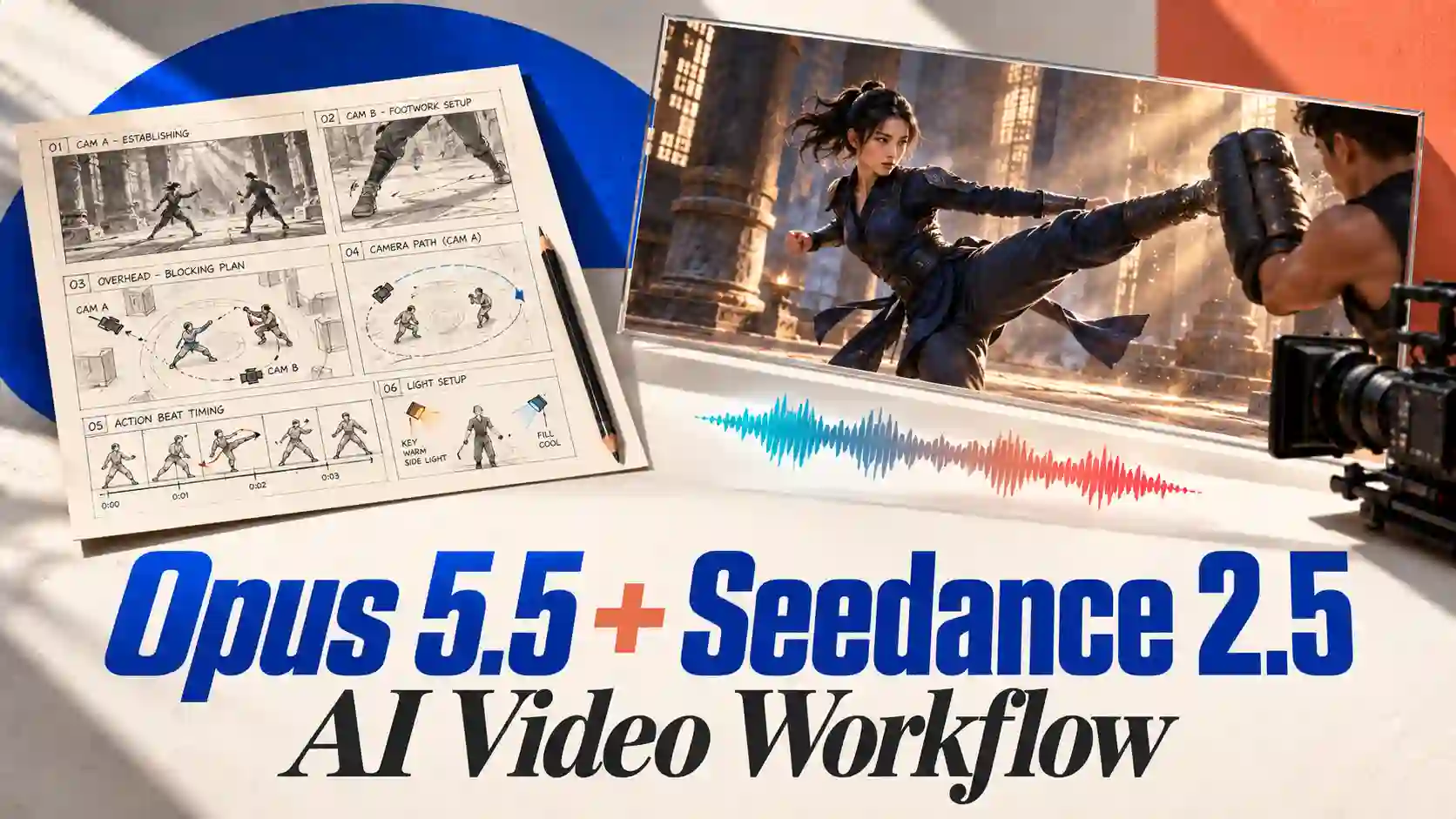
A strong AI video needs more than attractive individual shots. Characters need a purpose, actions need to connect, and the edit needs a rhythm.
An Opus 5.5 + Seedance 2.5 workflow brings those decisions into one production process: use Opus to develop the brief and shot instructions, Seedance to generate audiovisual footage, and editing tools to shape the final sequence.
TL;DR: Opus 5.5 + Seedance 2.5 Guide
Plan before generating. Define the story, visual constraints, and purpose of each shot with Opus 5.5.
Give references clear jobs. Separate character identity, setting, and starting composition to reduce conflicting instructions.
Direct for the format. UGC needs believable behavior; action needs readable choreography; cinematic scenes need continuity.
Keep the edit flexible. Retain approved footage and build graphics, sound, and effects in editable layers.
Try Seedance 2.5 Video Generator
How Opus 5.5 and Seedance 2.5 Work Together
Opus directs the production; Seedance brings the shots to life.
Think of Opus 5.5 as the director and Seedance 2.5 as the AI camera in your AI video production workflow.
Opus develops the creative plan, while Seedance turns your descriptions and references into moving scenes, including character performances, environments, and camera motion.
🎬 Opus 5.5: Direction and Code-Based Video Creation
Opus can help develop scripts, storyboards, shot instructions, and editing plans. It can also write code for animated typography, graphics, transitions, and video compositions.
Code-based video generation follows this process:
Creative instructions → Opus-generated code → Rendering tool → Video file
Opus 5.5 needs other tools to render and export the video. It can call those tools when connected, or provide code for you to run separately. Frameworks such as Remotion or HyperFrames can support this workflow when configured.
🎼 Seedance 2.5: Footage and Performance Generation
Use Seedance to generate the footage your plan calls for: natural human interactions, expressive animation, cinematic environments, or physical action.
Specify the subject’s behavior and the camera’s position and movement to guide each shot.
Opus 5.5 brings strength in understanding natural-language requests and developing a structured production approach. It helps turn abstract ideas about storytelling, shot progression, and pacing into specific directing decisions.
Seedance 2.5 brings strength in audiovisual generation and instruction execution. It translates those decisions into footage, shaping visual detail, motion, sound, and synchronization to improve the finished video’s quality.
An Opus 5.5 + Seedance 2.5 workflow can then combine those clips with editable graphics, sound, and effects in an editor or code-based composition. This connects creative direction, footage generation, and finishing while keeping each stage manageable.
Turn Your Idea into an AI Video Production Brief
Make the creative decisions before generating the shots.
Give Opus a short idea, relevant references, and the intended use.
Ask it to organize five decisions:
Purpose: Who is watching, and what should they understand or feel?
Story: What does the character want, and what changes?
Visual rules: Which appearance, wardrobe, locations, and colors must stay consistent?
Pacing: Where should the sequence accelerate, pause, or change mood?
Deliverables: Which reference images, generated shots, audio assets, and graphics are needed?
The output should be a brief you can approve before production. Resolve contradictions here, especially when a reference image and the written description suggest different clothing, lighting, or settings.
Prompt-writing tip: Ask for concrete production decisions. “Define the character’s action and the camera’s position” gives you more useful material than repeatedly requesting a cinematic look.
Build a Reference Pack and Direct Each Shot
Lock what stays consistent; specify what changes.
For consistent AI video characters, define what each reference controls:
Character reference: face, hair, clothing, and recognizable accessories.
Setting reference: environment, lighting, and visual atmosphere.
Approved start frame: the composition and positions at the beginning of a shot.
Then ask Opus to prepare a compact shot card:
Purpose → Subject position and action → Camera position and movement → Sound → Ending state
Keep character motion separate from camera motion. “She walks toward the doorway” describes the subject; “the camera follows from behind at shoulder height” describes the filming relationship.
End each card with the state the next shot inherits: where the person stands, what they hold, and which direction they face. This makes AI storyboard prompts easier to follow and exposes continuity problems before generation.
5 Creative Workflows for Opus 5.5 and Seedance 2.5
Match the directing method to the scene’s hardest problem.
Realistic AI Videos for Vlogs and UGC
Make the interaction believable.
Use Opus to establish the filming situation, then let Seedance generate the performance.
A practical AI UGC video workflow starts with three decisions:
Camera perspective: Who is filming, and where is the camera?
Natural behavior: What is the person doing, noticing, or responding to?
Conversation: Who receives the eye contact, and where should speech pause?
💡 Production tip:
Start with one action and a short exchange.
Small reactions and clear object handling often matter more than elaborate camera movement.
Check gaze, hand contact, and speech timing before extending the sequence.
AI Animation for Playful Stories and Character Remixes
Give the character a reason to move.
Build the story around a simple progression:
Goal → Obstacle → Reaction → Payoff
Ask Opus to turn each beat into a readable action. Use Seedance to animate the expressions and movement while keeping the approved character design consistent.
Keep fixed: silhouette, proportions, palette, and signature details.
Let change: poses, expressions, timing, and reactions.
💡 Production tip:
Describe performance separately from appearance.
A clear gesture or well-timed pause can carry the joke without adding more characters, props, or explanatory text.
Cinematic AI Scenes for Short Films and Big Ideas
Give spectacle a human point of view.
Use Opus to organize the scene’s progression, then generate the planned moments with Seedance.
Give each shot a purpose:
Establish: Make the location and scale understandable.
Reveal: Introduce the event that changes the situation.
React: Show what it means to the character.
Advance: Follow the decision or consequence.
Adapt these functions to your AI short film workflow; they do not require four separate shots.
💡 Production tip:
Carry a landmark, movement direction, or sound across cuts.
Give each shot one dominant event, and leave room for reactions so the cinematic AI video has emotional weight as well as scale.
AI Action Scenes with Clear Choreography and Camera Movement
Make every move lead to a response.
Before adding dramatic camera instructions, ask Opus to resolve the choreography:
Starting positions → Initiating move → Response → Ending positions
Use this chain to guide Seedance. Choose camera positions that reveal the important contact, counterattack, or change of direction.
Review three things:
Contact: Do impacts, grips, and reactions connect?
Weight: Do balance and momentum feel believable?
Continuity: Do limbs, props, and movement directions remain coherent?
💡 Production tip:
Keep AI fight scene prompts focused on a short exchange.
Reserve the strongest camera move for a meaningful beat, then review the result at normal speed before extending it.
Stylized AI Video Editing with Rhythm and Visual Effects
Build the effects around the footage’s rhythm.
Give Opus accessible footage or selected frames, timing notes, and music or a beat map.
Develop the edit in three passes:
Shape the cut: Identify key actions, pauses, and emotional changes.
Build the visuals: Place typography, overlays, masks, and transitions around those moments.
Refine the sound: Align cues and musical accents, then adjust the complete sequence through playback.
Opus can plan the layers and help write compositing code when suitable tools are configured. An editor or compositor executes the effects; Seedance supplies additional or replacement shots when needed.
💡 Production tip:
Tie each effect to a gesture, impact, or musical accent.
Precise beat-synced video editing requires timing tools and playback checks.
Keep layers editable, and use tracking or masks when effects must follow objects or pass behind a person.
Start Your Opus 5.5 + Seedance 2.5 Creation
Use Opus 5.5 to shape your idea, plan the shots, and guide the edit.
Bring those decisions to life with Seedance 2.5 audiovisual generation.
Start with one clear concept and a few purposeful shots.
Create with Seedance 2.5, review the results, and build your next sequence from there.
Start Seedance 2.5 Creation Online
Opus 5.5 + Seedance 2.5 Workflow FAQs
Can Opus 5.5 generate videos directly?
Not by itself. Opus can write production instructions and video-generating code, but it needs other tools to generate footage or render and export the finished video.
Do I need coding skills for this workflow?
No, not for the basic workflow. Use Opus for planning, generate shots with Seedance, and assemble them in a conventional editor. Code-based animation is an optional route that requires a working rendering setup and troubleshooting when needed.
How can I keep characters consistent across AI video shots?
Reuse approved character references across shots. Keep identity, wardrobe, and key accessories stable while changing only the necessary actions or framing. Check each result before using it to guide later shots.
Can Opus help edit an existing video to music?
Yes, with suitable editing and audio tools. Opus can help plan cuts, sound cues, and visual effects from accessible footage and timing information. The tools execute the edit, and playback checks are needed to refine synchronization.
Related Articles
How to Create Wassup in a Minute AI Videos with Seedance 2.5
Make Wassup in a Minute AI videos with Seedance 2.5. Get a step-by-step workflow, four creative examples, copyable prompts, and music editing tips.
Seedance 2.5 Lip Sync: Talking Video Guide
Create talking videos with Seedance 2.5 Lip Sync. Learn how to prepare images and audio, write prompts, and improve timing through three practical tests.