How to Create Wassup in a Minute AI Videos with Seedance 2.5
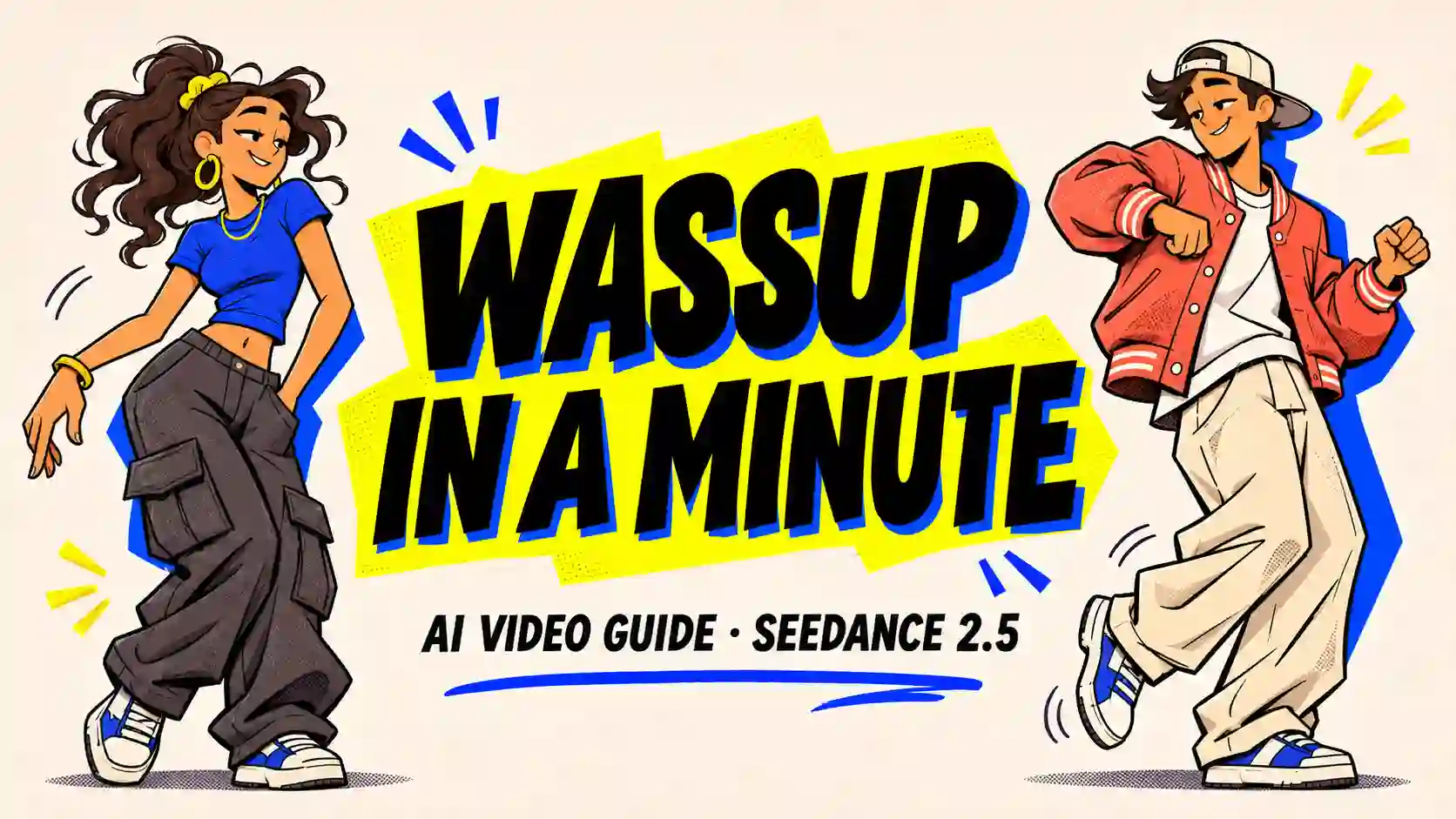
To create a Wassup in a Minute AI video, start with a character image, a short movement reference, and your chosen music excerpt. Animate the character with Seedance 2.5, then finish the timing, offset shadow, and character changes in your editor.
First, decide how much should move: a fixed pose swaying as a cutout, or a character performing new steps to the beat. The four examples below show how to direct both approaches.
TL;DR: Wassup in a Minute Seedance Video
Choose the motion before writing the prompt. A cutout sway preserves the pose; a dance remix allows changing gestures and footwork.
Give the image, video, and audio separate roles so appearance and movement have clear references.
Start with a short, correctly framed clip. Ten seconds is enough to explore one character setup.
Keep music-led variations that fit your creative goal, then check their timing and transitions.
Use editing for precise music placement, offset shadows, and switching between characters.
What Makes a Wassup in a Minute Video Recognizable?
A strong pose gives a small movement personality.
The trend is associated with streetwear anime characters moving to a Jersey club remix of “From Time” by Drake and Jhené Aiko.
For your own version, build around three recognizable elements:
a distinctive character
a repeating movement
a clear musical rhythm
White backgrounds and offset silhouettes help create the familiar graphic finish.
Choose a starting direction:
Your version | Motion to direct | Starting ratio |
Cartoon duo | Fixed pose, gentle sway | 3:4 |
Photoreal character | Photo cutout lean | 1:1 |
Cute animal | Whole-character sway | 3:4 |
Group remix | Connected dance steps | 9:16 |
These are creative starting points. Choose a different composition when your subject or publishing format calls for it.
Prepare Three Inputs That Work Together
Make the creative decisions before the first generation.
A Character Image With Space to Move
Use a clear image with the entire head, hands, and shoes visible. Leave room around the silhouette for leaning and sideways movement. For an animal, include the ears, paws, and tail.
A useful starting image already answers the visual questions: Who is the subject? What are they wearing? What pose should the clip begin with?
Need to develop the look first? Follow the design-to-video workflow before directing movement.
A Short Clip Showing the Movement You Want
Choose a reference with a readable motion phrase. For anime sway animation, look for a fixed pose tilting from side to side. For a dance remix, choose visible footwork and body coordination.
Give the reference a specific job: copy the movement style while retaining the appearance in your character image.
If the reference contains two people and your image contains one, identify which figure supplies the motion.
The Music Excerpt You Plan to Use
When looking for the Wassup in a Minute song, match the remix in the edit you are referencing. Different versions can have different timing.
Select a short musical phrase, note its starting point, and match the planned video duration to it. This gives you a clear section to animate and edit around.
Create Your First Clip With Seedance 2.5
Build one usable shot, then expand the edit.
Upload your assets. Open the Seedance 2.5 generator, select Multi-Reference, and add your character image, music excerpt, and any motion reference.
Assign each reference a role. Use the @ picker to insert your files: image for appearance, video for movement, and audio for rhythm. Adapt one of the prompts below.
Generate a short draft. Match the audio duration, and choose a ratio that keeps the full character visible.
Review with sound. Check rhythm, framing, and character consistency. For cutouts, preserve the pose; for dance clips, look for connected movement.
4 Ideas to Make the Wassup Trend Your Own
Use each example to solve a different creative challenge.
Cartoon Streetwear Cutouts: Move a Duo Together
Use this approach for an original anime pair, coordinated outfits, or a character introduction.
The example combines a burgundy puffer jacket with a navy varsity jacket. The contrasting colors separate the figures, while wide trousers and sneakers establish the streetwear look.
Your creative goal: keep both poses readable while the pair shares a repeating sway.
Copyable prompt:
Create a animation with exactly the two characters in @Image1. Use @Video1 for the whole-cutout sway. Gently tilt and shift each complete silhouette from side to side with smooth reversals. Preserve their poses, expressions, outfits, hand positions, and spacing. Fixed camera, constant scale, pure white background. No walking, separate arm gestures, costume changes, or additional characters.
Make it yours: change the jackets, hairstyles, or color pairing while keeping the figures visually separate.
If one character starts performing independent gestures, try this focused correction:
Preserve each figure’s pose; move the complete cutout as one unit.
Photoreal Cutout Sway: Animate a Fashion Portrait
For a realistic AI character video, start with a strong photographic pose and a clearly defined outfit.
The young adult woman in this example wears a fitted cobalt-blue top, high-waisted charcoal cargo trousers, and black-and-white sneakers. The visible waistline and separate arm positions make the silhouette easy to read.
Copyable prompt:
Create a photo-cutout animation of the single adult woman in @Image1. Use only the left figure’s whole-cutout sway from @Video1 and @Audio1 as the rhythm reference. Preserve her face, outfit, expression, pose, and hand placement. Move the entire silhouette with a gentle alternating lean and small sideways shifts. Fixed camera and scale, pure white background. No walking, separate arm gestures, talking, or additional people.
For this photo cutout animation, the creative emphasis is on styling, pose, and rhythmic presentation. Save independent shoulder, hip, and foot movements for a separate dance version.
A dark offset silhouette can complete the graphic look. Add it in your editor so its position and opacity remain easy to adjust.
Cute Animal Cutouts: Adapt the Motion to a Mascot
A fluffy orange tabby in a teal puffer vest and cream hoodie gives the format a playful direction. The same approach can introduce an original animal mascot.
When making a cute animal AI video, describe the animal’s actual features. Name the paws, short legs, and tail you want to preserve.
Copyable prompt:
Create a cutout-sway animation of the single orange cat in @Image1. Use one figure’s whole-silhouette sway from @Video1. Move the cat, clothing, paws, and tail together as one pose-locked cutout. Preserve the feline paws, short hind legs, curved tail, expression, and fur texture. Smooth side-to-side reversals, fixed camera, white background. No human fingers, extra limbs, or lengthening legs.
Keep the character recognizable:
Leave space around the tail.
Keep the original paw placement.
Retain the contrast between soft fur and quilted clothing.
If the paws stretch during movement, refine that detail before adding a more complicated action.
A Choreographed Group Remix: Let the Music Shape the Dance
Use this direction when you want to expand the trend into a fuller performance.
The group setup places four AI-generated adult men in a modern corridor. Clear gaps between the dancers leave room for readable arm movements and small steps.
Leave room for interpretation. Dance movements may be reinterpreted around the music. A changed gesture or step can still make an effective AI dance remix when it fits the beat and connects naturally to the next movement.
Copyable prompt:
Create a group dance with exactly the four adult men in @Image1. Preserve their identities, outfits, formation, and corridor setting. Build a compact groove with soft knee bends, alternating weight transfers, small foot switches, and heel lifts. Let the hands rise from hip level toward the waist and chest, then return smoothly. Allow small music-led variations while keeping the timing on beat, transitions connected, and feet grounded. Fixed full-body camera, one continuous shot.
For a closer interpretation of a dance reference, name the movements that matter most. For a freer remix, allow variation within a simple groove.
When choosing the take, consider:
Musical fit: movement accents feel connected to the track.
Continuity: one action leads into the next.
Group clarity: each dancer remains distinct and readable.
A lower-body reference can guide footwork. Supply separate instructions for arm movements that are outside its frame.
Refine the Detail That Is Holding Your Video Back
Make each revision answer one clear problem.
The character dances when you want a cutout. Remove freestyle, shoulder-bounce, and separate gesture instructions. Ask for a fixed pose with whole-silhouette movement.
An extra person appears. Specify the exact subject count and identify which reference figure supplies the motion.
The group’s feet slide. Reduce travel distance and ask for smaller steps with clear supporting legs.
If strict pose preservation remains difficult, rotation and position keyframes offer a direct editing alternative. Keep that finishing method separate from claims about model-generated body movement.
Start Your Wassup in a Minute Creation
For more help shaping an idea into specific shot instructions, see the Seedance 2.5 creation workflow.
Choose a character you want to feature, pick one musical phrase, and make your first short clip. Use its result to decide which detail deserves the next revision.
Wassup in a Minute FAQs
Does “in a minute” mean the video must be 60 seconds long?
No. It identifies the trend, not a required duration. Choose a length that fits your music excerpt and intended edit.
Do I need a CapCut template?
No. You can generate the character animation with Seedance 2.5 and assemble the music, shadows, and transitions in your preferred editor. A template is an optional editing route.
Can I start with only an image and music?
Yes. The generator supports an image-plus-audio workflow. Describe the movement in your prompt, and add a motion reference when you want to communicate a particular sway or dance style.
Related Articles
Seedance 2.5 Lip Sync: Talking Video Guide
Create talking videos with Seedance 2.5 Lip Sync. Learn how to prepare images and audio, write prompts, and improve timing through three practical tests.
Opus 5.5 + Seedance 2.5: Director’s AI Video Workflow Guide
Plan, generate, and edit AI videos with Opus 5.5 and Seedance 2.5. Explore workflows for UGC, animation, cinematic scenes, action, and stylized edits.